Signing in, and your account.
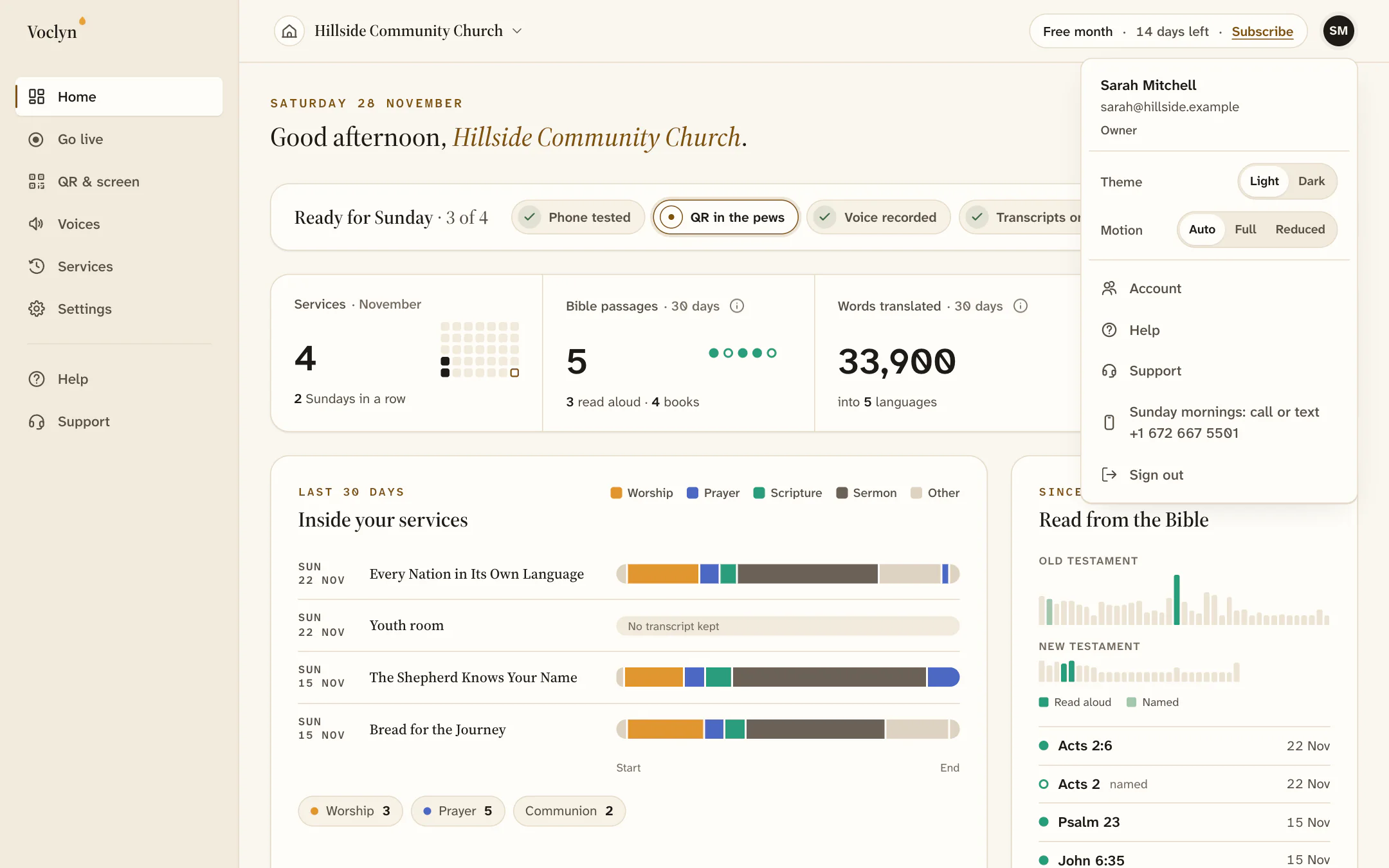
Sign in with your email and password, or have a sign-in link emailed to you. Your name and password are under Account, in the menu under your initials; the churches you help are in the menu on the church’s name. People in the pews never need an account.
- Password
- At least 10 characters
- Sign-in link or code
- Works once, for an hour
- Change your email
- Write to hello@voclyn.com from it
- Listeners
- Never need an account
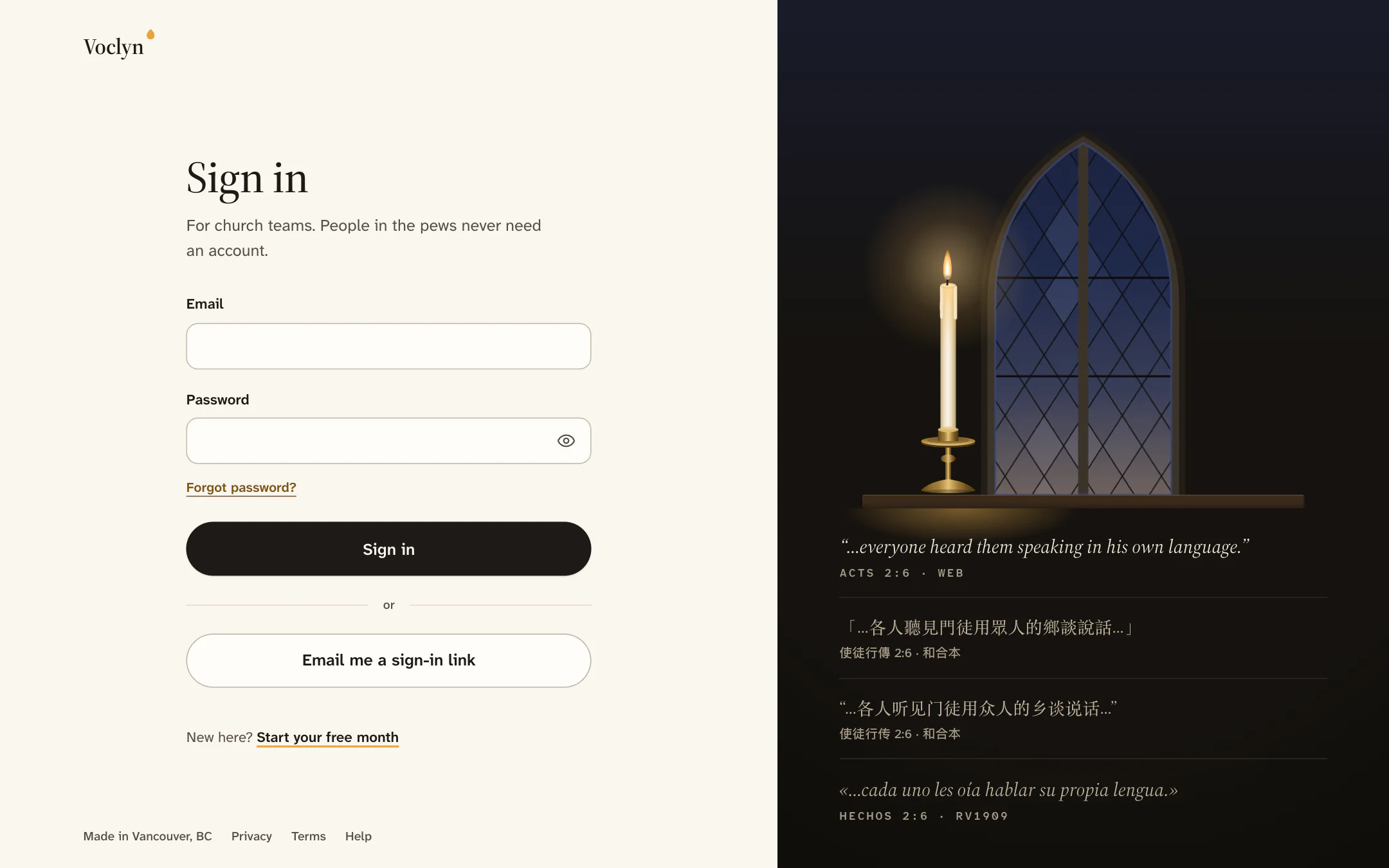
Sign in
- Open voclyn.com/signin, or Sign in at the top of any page.
- Type your email and password and choose Sign in; or choose Email me a sign-in link and open the email. The link works once, for an hour. Reading it on your phone? Type the 6-digit code under its button into Code from the email on the computer and choose Continue.
- If Continue with Google is shown and your account uses Google, that works too.
“That email and password don’t match” means one of them is off: try again, or use a sign-in link. After too many tries, wait a minute.
Choose or change your password
A new account has no password at first: emailed links always work. A banner offers Add them (or Choose a password, when only the password is missing), so Sunday morning needs no email; Not now hides it for two weeks, and Google accounts never see it. A password is at least 10 characters; a short phrase is easiest to remember and hardest to guess.
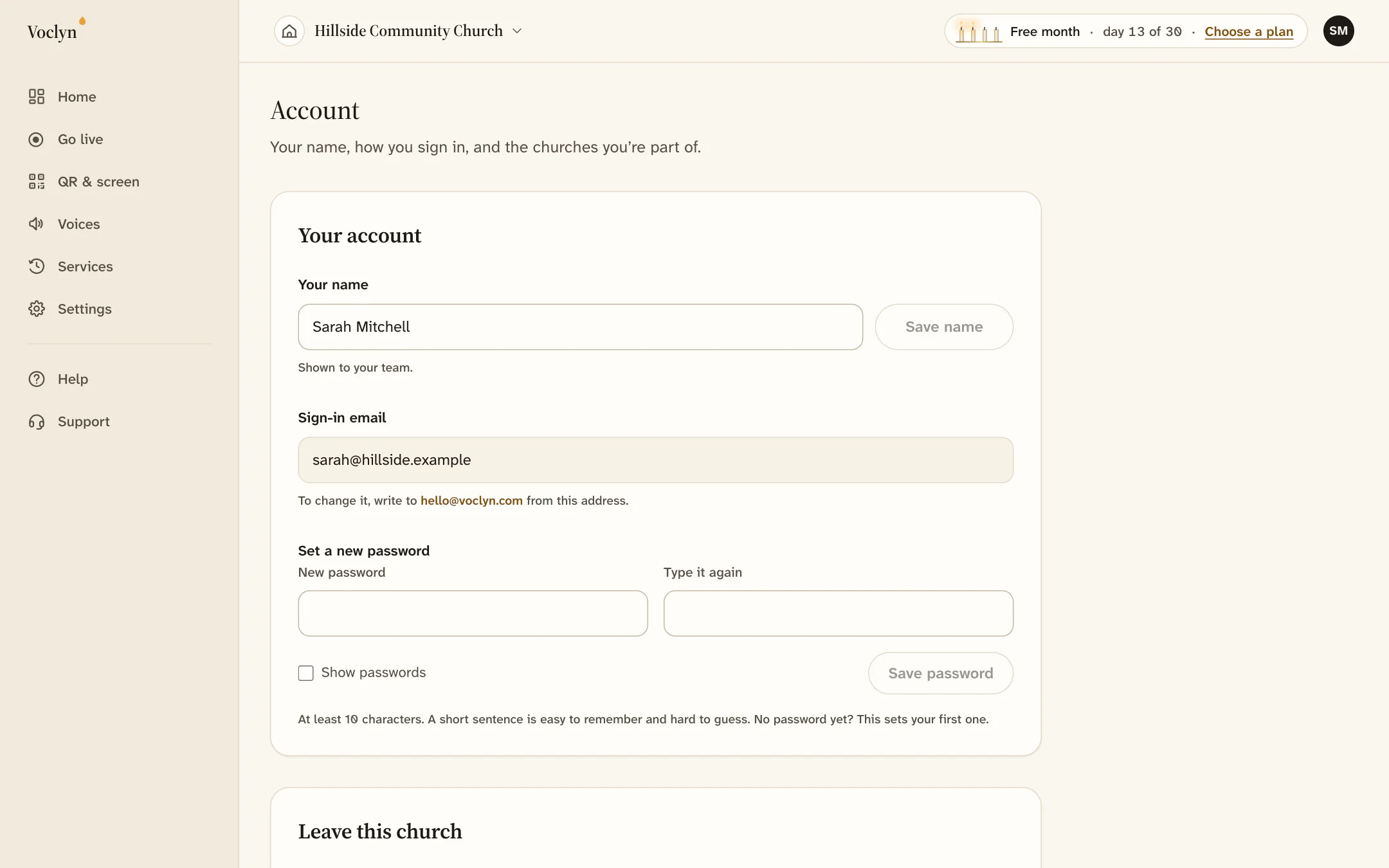
To change it, open Account › Set a new password and Save password. Saving it signs you out on your other devices. Signed in a while ago? It asks for a fresh sign-in link first, which brings you back to Account.
Forgot your password
- On the sign-in page, choose Forgot password?, type your email and Send reset link.
- Open Reset your Voclyn password; the link works for an hour. On another device than the one you asked from, type its 6-digit code into Code from the email where you asked, and choose Continue.
- Choose a new password and Save and sign in.
Your account page
- Your name, shown to your team.
- Sign-in email: to change it, write to hello@voclyn.com from that address.
- Set a new password.
- Leave this church. A church’s only owner can’t leave: make someone else owner first, or delete the church. Your team and roles.
- To sign out, choose Sign out in the menu under your initials. To delete your own account, write to hello@voclyn.com from its address.
Helping at more than one church
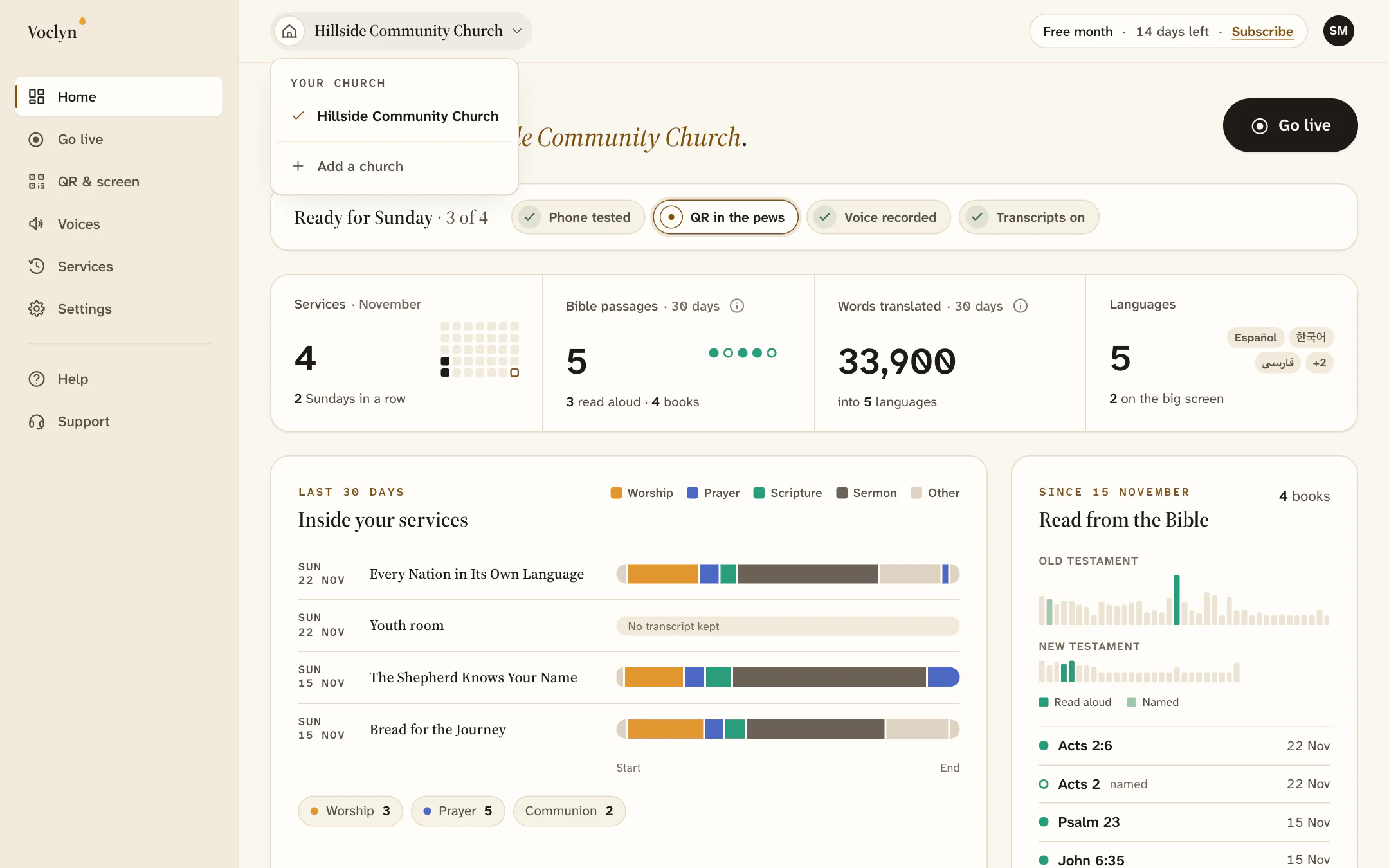
One account can belong to several churches. The menu on the church’s name, at the top left of the dashboard, switches between them, and Add a church starts a new one: up to three that you own.
Light or dark, and motion
The menu under your initials also sets the dashboard’s Theme, Light or Dark, and Motion: Auto follows your device, Full always moves, Reduced keeps things still. The console is always dark, for a dim church. The same menu has Help, Support and the Sunday phone number.
Questions
No. Each person is invited with their own email and signs in as themselves; roles decide what they can change.
Links work once, for an hour. Ask for a new one on the sign-in page, and open the newest email.
Type the 6-digit code under the email's button into Code from the email on the computer, and choose Continue: the code signs in the screen that asked for the email, the button the device it is pressed on. Already pressed the button on the phone? On the computer, choose Email me a sign-in link and type that email's code.
Read next
Still need help?
A person answers hello@voclyn.com Sundays 7:00–13:00 Vancouver time, and as soon as we can on other days. Say which church and room it is, what the console and the phones show, and add a screenshot if you can.
- Sunday help opens 7:00 Vancouver time.
- Sunday mornings: +1 672 667 5501 · text
- Signed in? Write from Support in the dashboard’s sidebar, and the answer comes back there.