What people see on their phones.
People scan the QR code or open the link, choose their language, and read along; with earbuds, they tap Listen for the AI voice. There is no app and no account, and the page never uses their microphone, camera or location.
- Needs
- A phone with a browser
- Account
- None, and no cookies
- Kept on the phone
- Language, text size and theme
- Languages
- Any of 100+ on Church and Campus, and in the free month
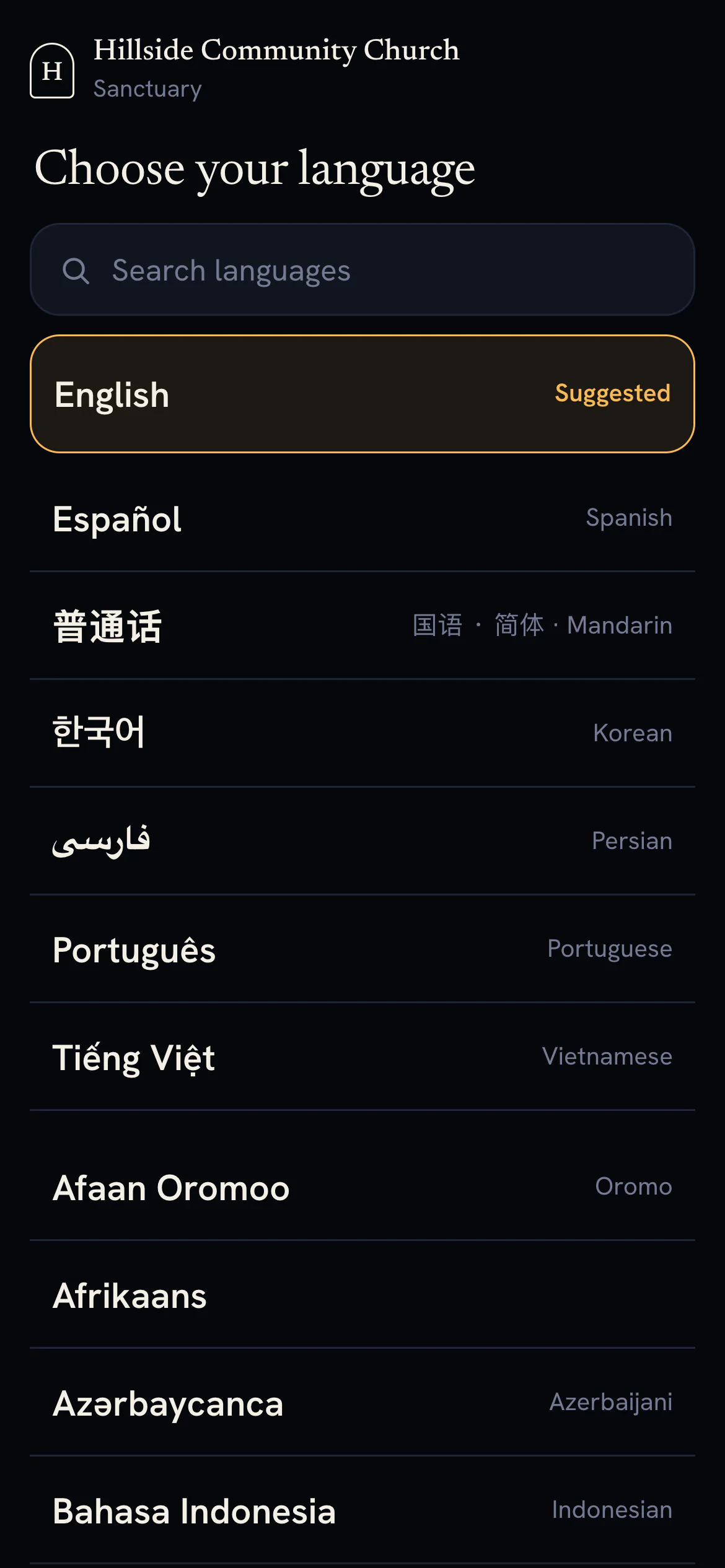
Choose your language
The phone's own language is marked Suggested.
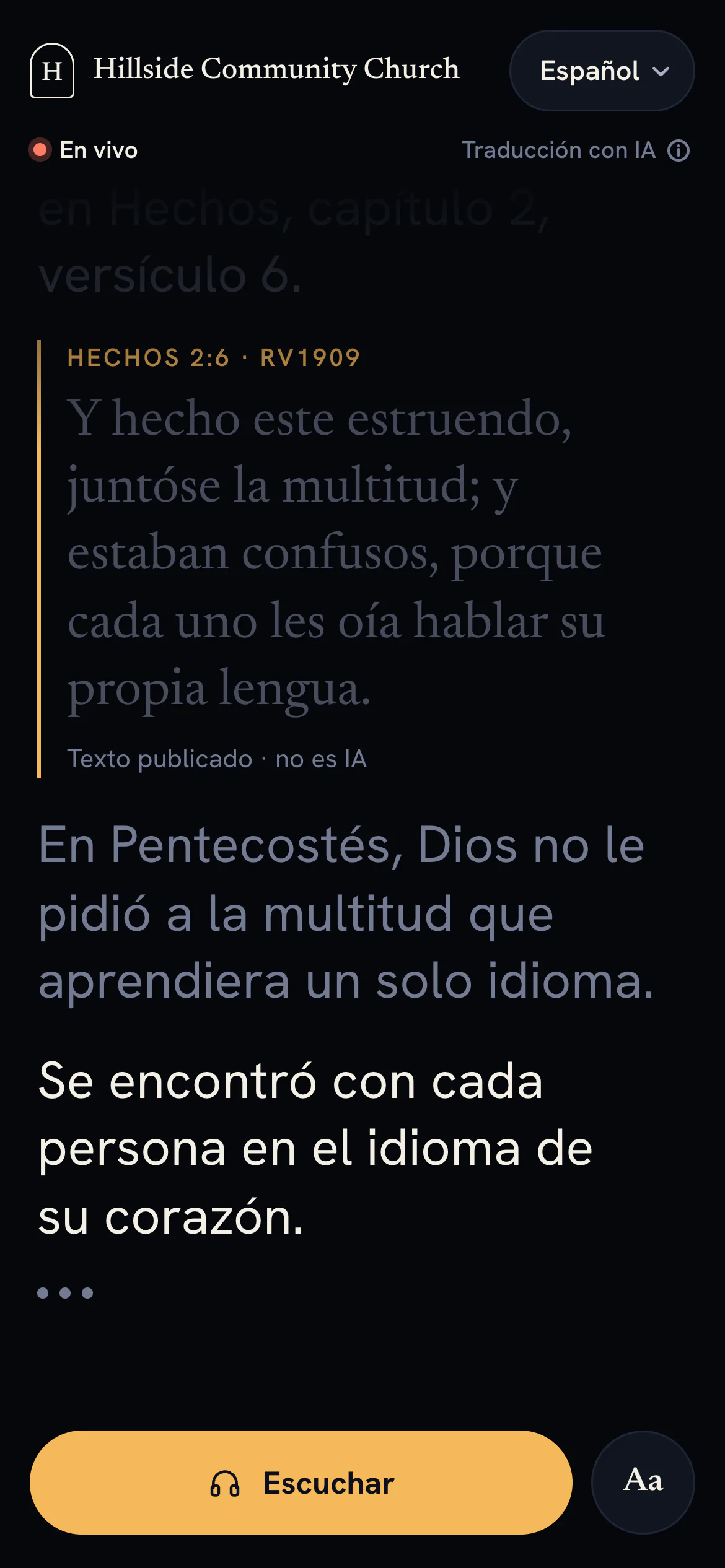
Captions
Each sentence in Spanish, right after it is said.
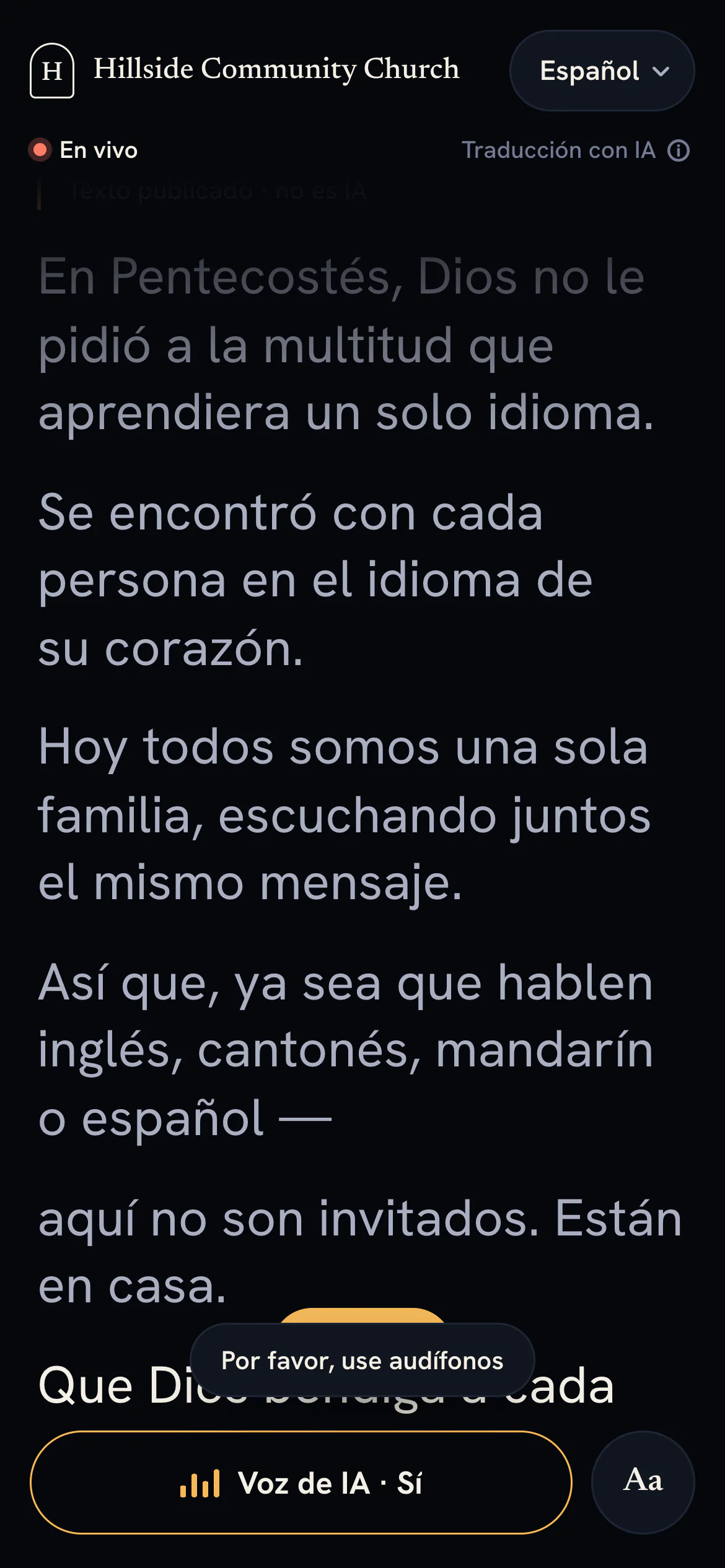
Listen
With earbuds, the AI voice reads it aloud.
Join in three taps
- Point the phone’s camera at the QR code, or type the link. No app opens and nothing asks to sign in.
- Under Choose your language, tap one. The phone’s own language comes first, marked Suggested, then the ones read here most lately, then every other by its own name; the search on top finds any of them. The page remembers the choice for this church.
- Before the service the page says The service hasn’t started yet. Captions start by themselves when the desk goes live.
Choose your language
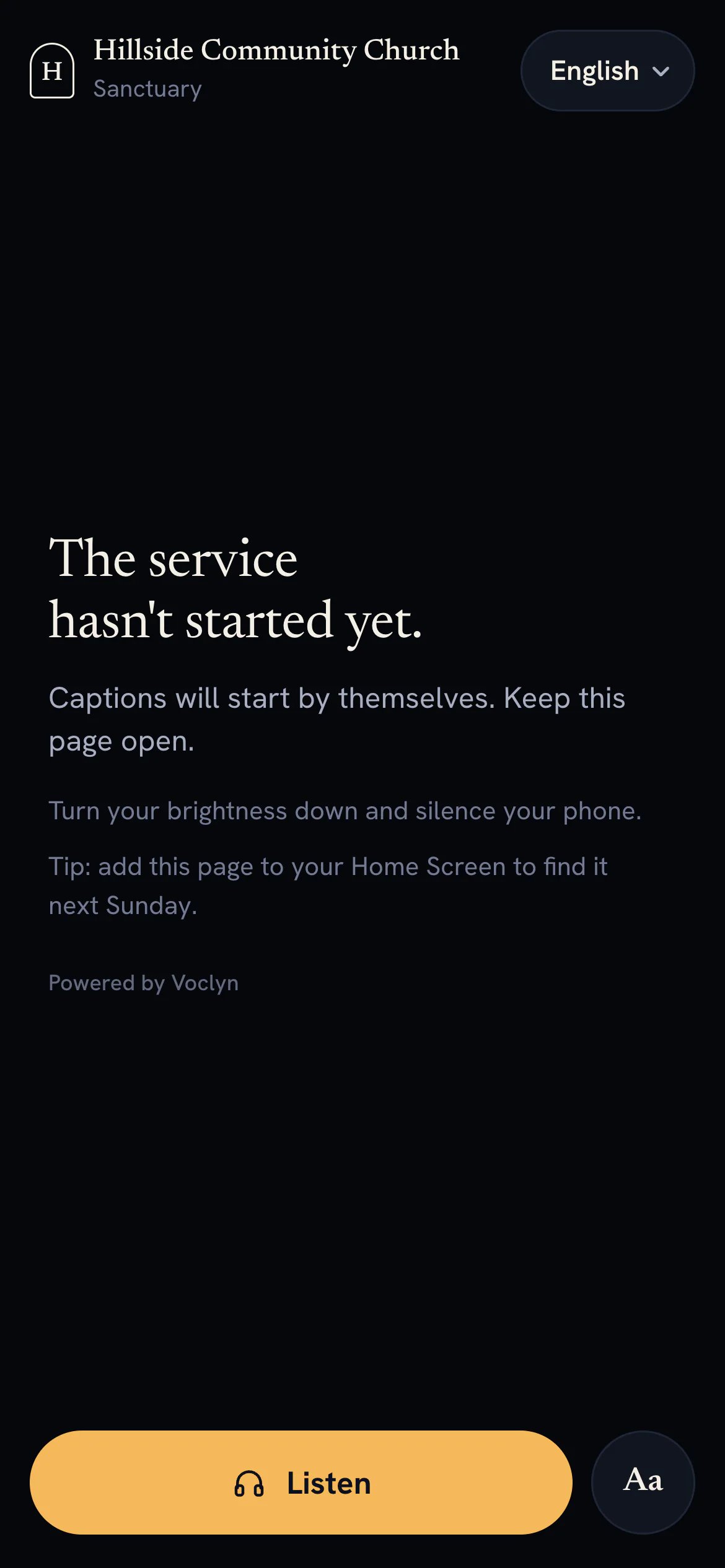
Waiting for the service
On Church and Campus, and in the free month, every phone can choose any of 100+. On Free and Chapel the list is the church’s own, with Ask for it under it for anyone who doesn’t see theirs. Languages.
A link with ?l=es at its end opens with Spanish already chosen: handy in a bulletin or a group chat. Copy one per language from QR & screen. Link, QR code and print kit. From their second visit, phones suggest adding the page to the Home Screen, so it is one tap away next Sunday.
Reading the captions
- At the top: the church, the language, Live, and AI translation (or Live captions where the words are as spoken). A tap on it explains what is made by AI.
- Phones reading the language being spoken see the words appear as they are said. Everyone else gets each sentence, translated, right after it ends.
- The newest sentence is the brightest; older ones fade. Scroll up to read back: a button at the bottom brings the page back, saying 3 new when sentences arrived meanwhile, or Back to now.
- A Bible passage the pastor names and reads comes from a published Bible, as a card marked Published text · not AI, in the other languages that have one. Bible readings.
- A room can also show each sentence as spoken under its translation: Room settings › Show the original.
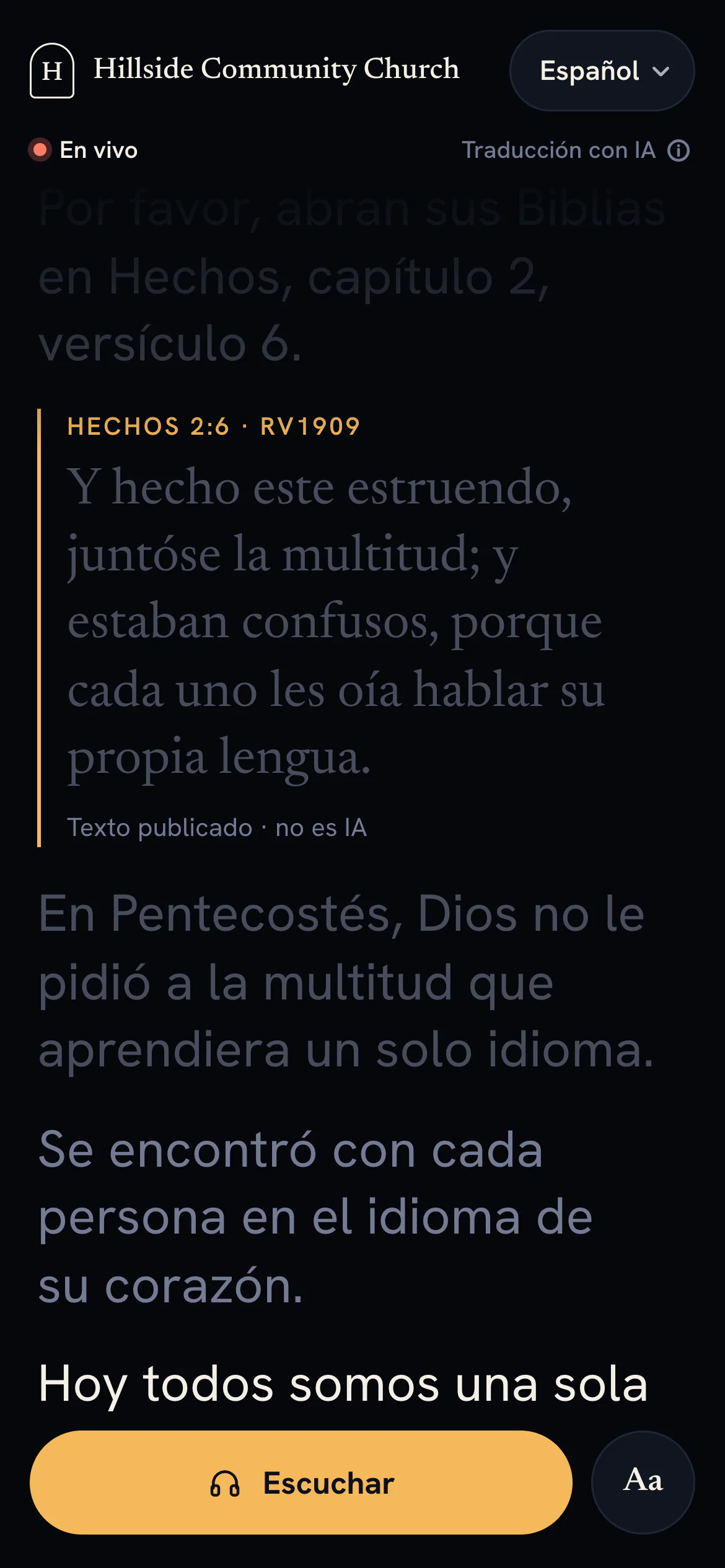
A Bible reading
From the Bible your church chose, verse by verse.
Changing language
- Tap the language at the top right. The same list opens, with the search on top and the language in use ticked.
- Tap another, or type its name in any language. The captions switch at once, and the AI voice follows if it is on.
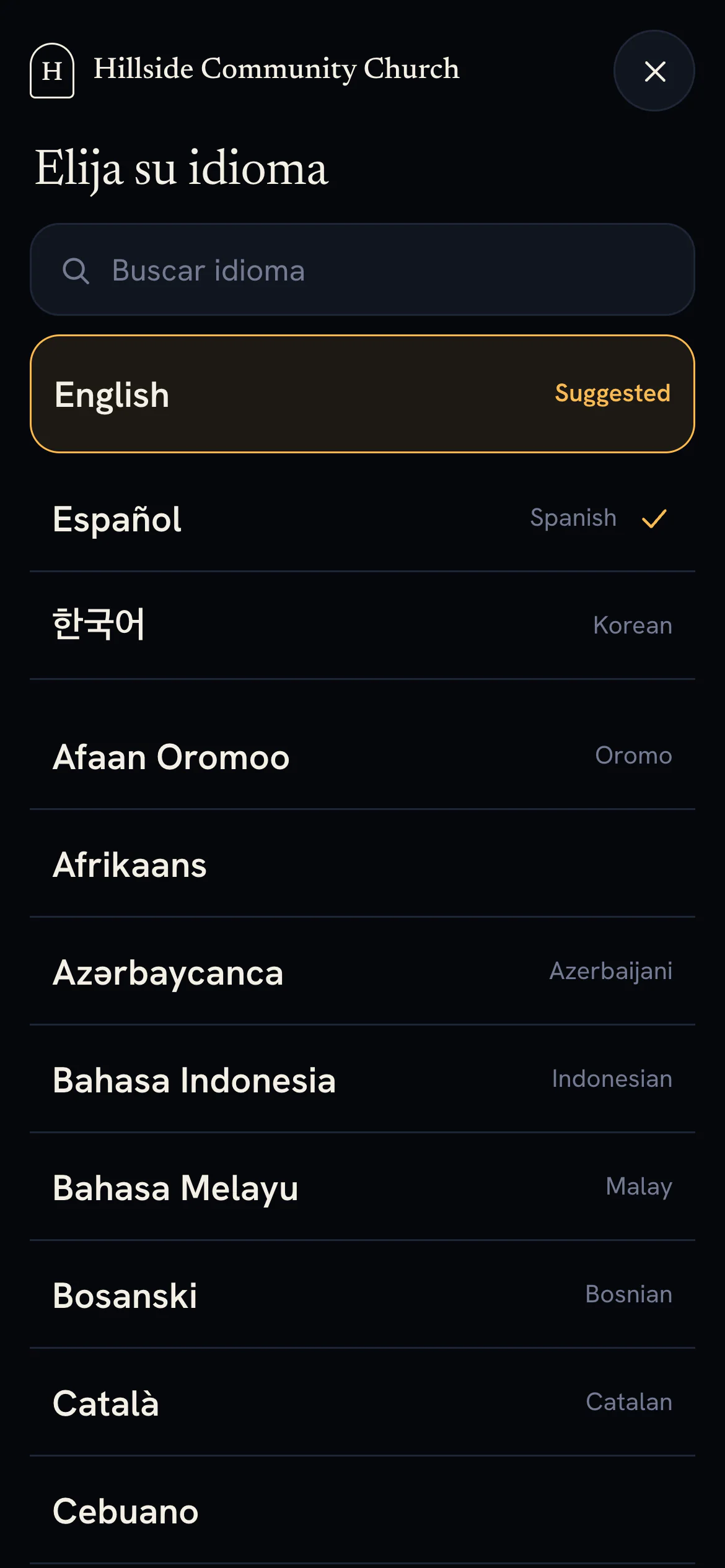
Change language
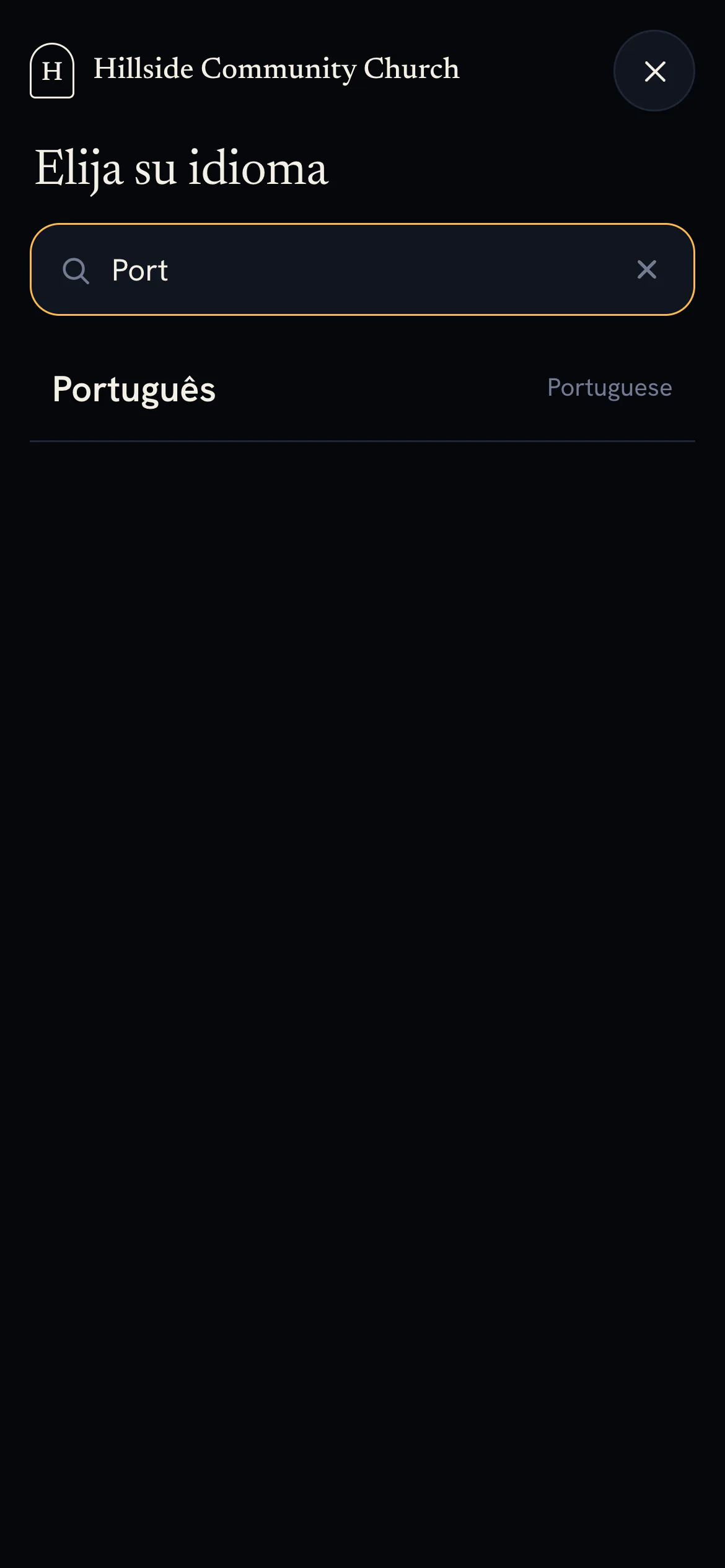
Search
Listening to the AI voice
With earbuds in, tap Listen. Its bars move while the AI voice reads each sentence: the translation, and on a phone in the language being spoken, the words as said, in the standard AI voice (a help for people who don’t hear well). The voice keeps playing with the phone locked, and fades out when the service ends.
In a language that has no AI voice yet, Listen is quieter, and a tap says so: read along with the captions instead. The Free plan has no AI voice. The AI voice.
Opened from KakaoTalk, WeChat, Instagram or Facebook? Their own browsers can’t play the voice: open the page in Safari or Chrome. The AI voice doesn’t play.
Text size, dark or light
The Aa button opens five text sizes, Dark · for church or Light · for home, and the screen kept on during the service. The phone remembers them, with the language, for next time.
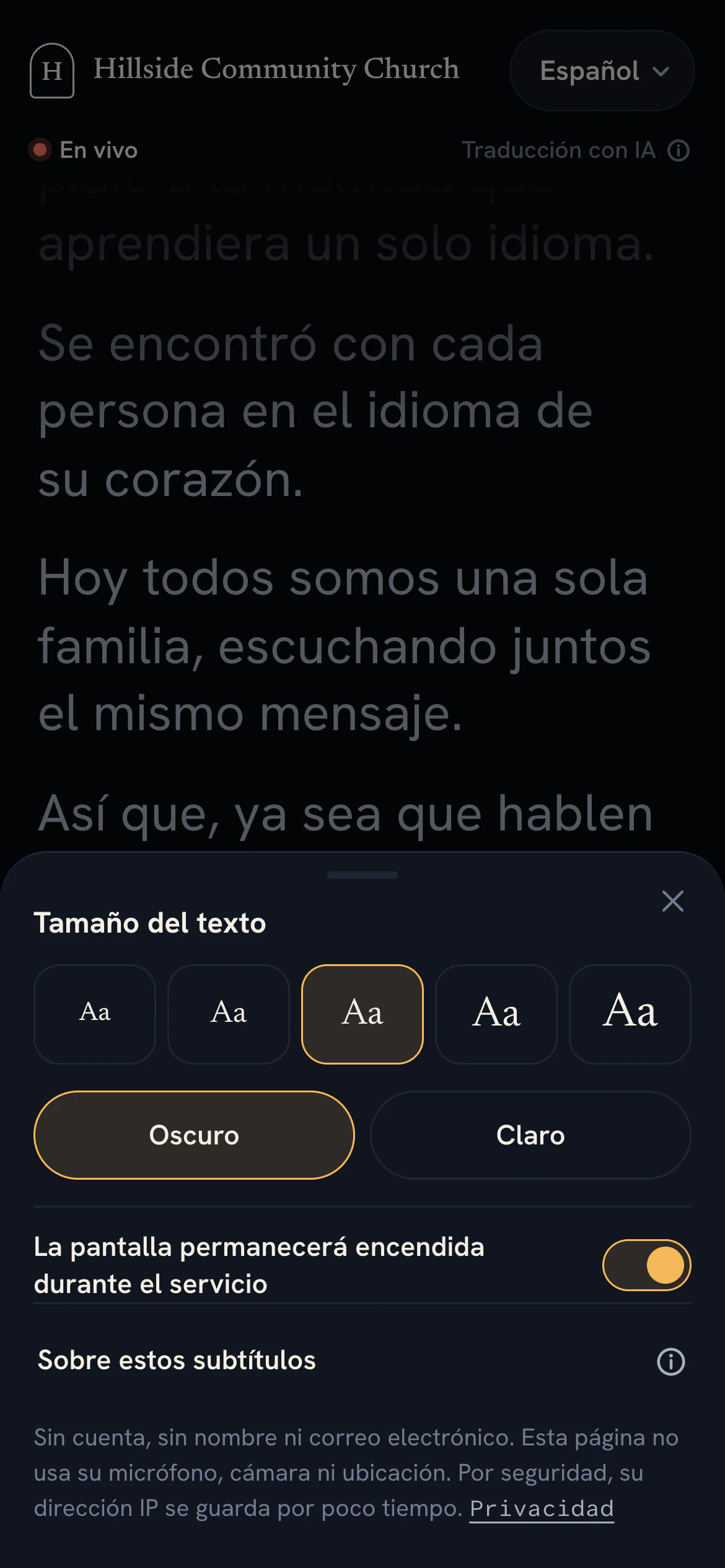
Aa
What each screen means
| The phone says | It means |
|---|---|
| The service hasn't started yet. | Waiting: captions start by themselves when the desk goes live. |
| Live | The captions, from the first sentence on. |
| Worship · captions resume when someone speaks | The desk chose Worship. |
| Translation paused | The desk chose a break, or a private moment with the captions hidden. |
| Reconnecting | This phone's connection dropped for a moment; the words stay, and it catches up by itself. |
| The church’s connection dropped. Captions will continue when it’s back. | The console at the sound desk lost its internet; the captions carry on by themselves when it is back. |
| No connection. Check Wi-Fi or use mobile data. | Offline, with Retry. |
| Go in peace. | The service has ended. The page keeps its words until the next one starts. |
| Ended, for a technical problem | The live translation stopped because of a technical problem. |
Waiting
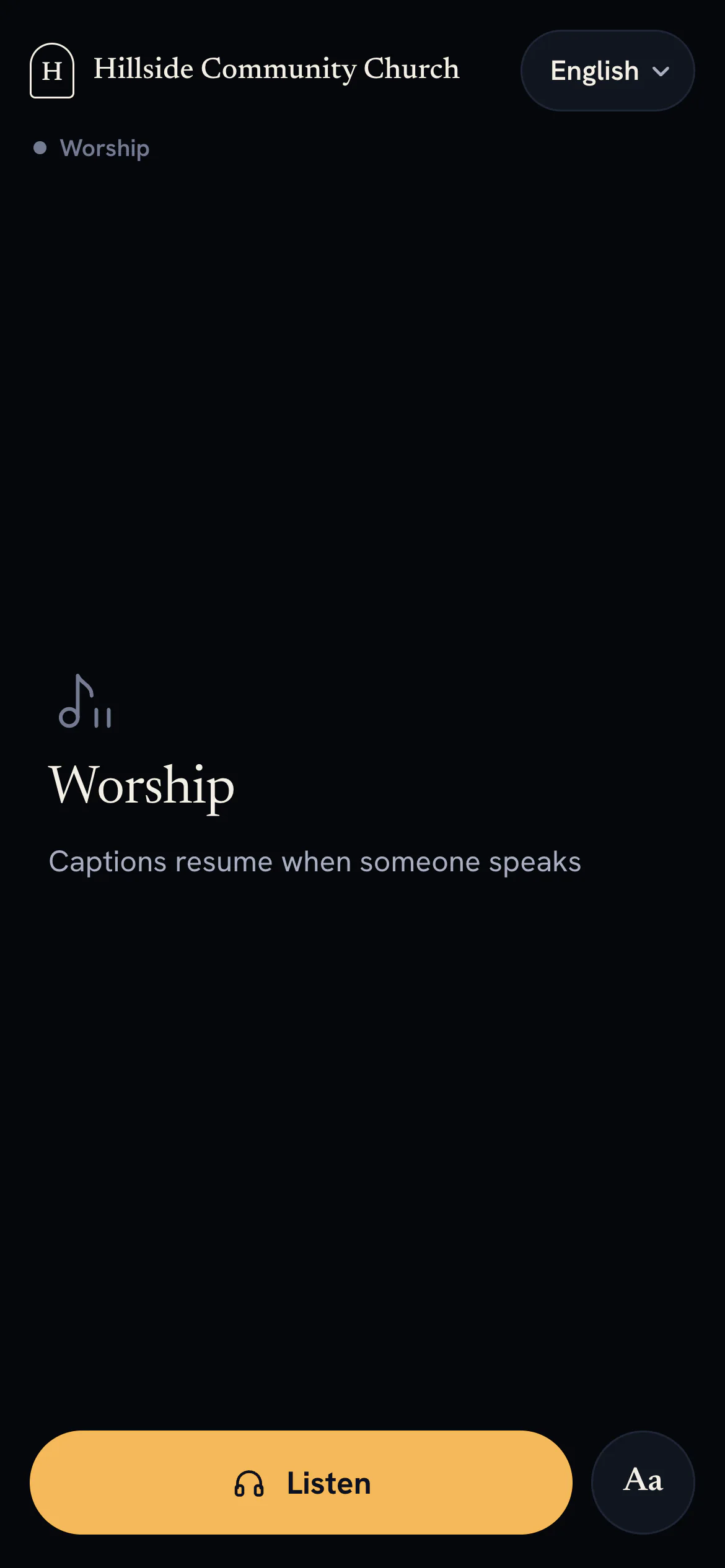
Worship
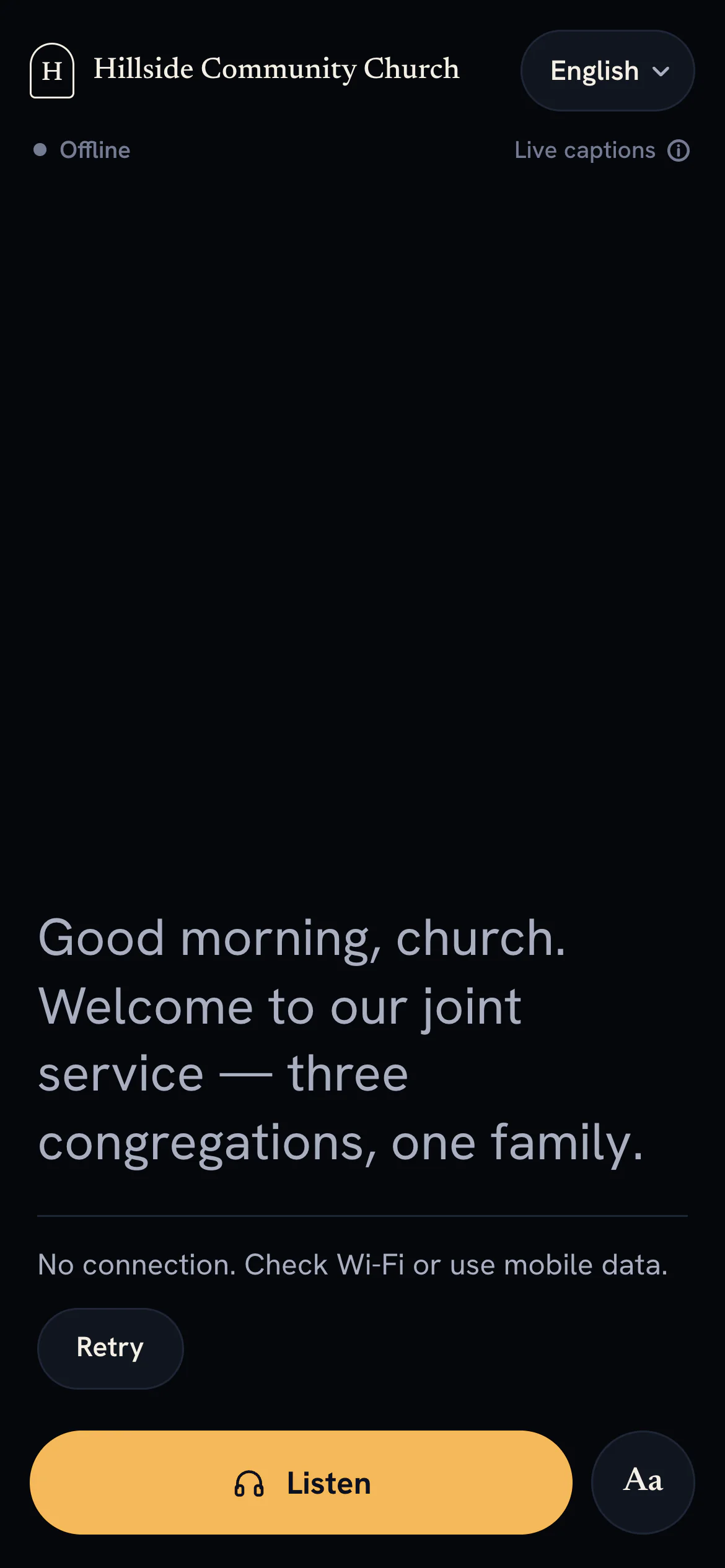
Offline
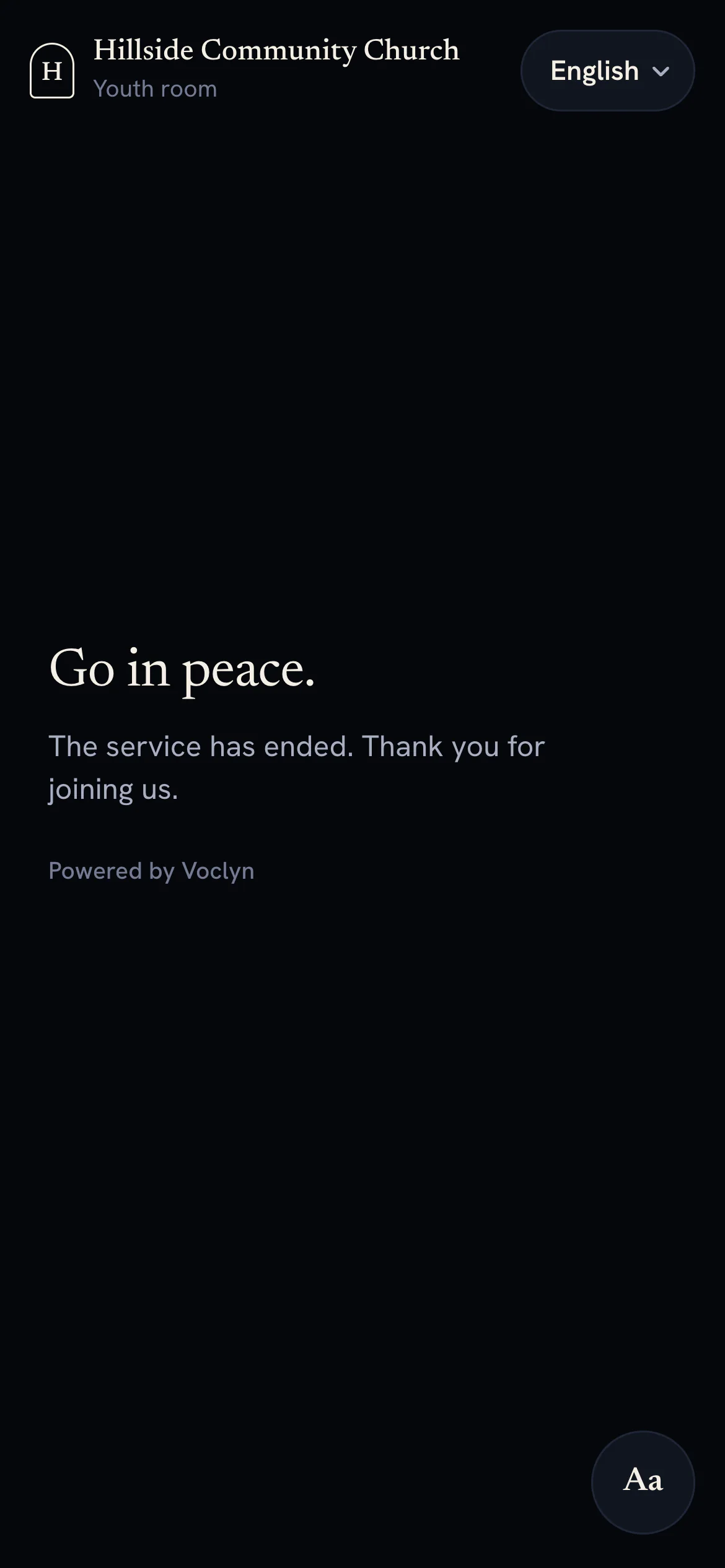
Ended
A mistyped or old link opens a page saying This church link isn’t active. What to check for each: The phones show nothing.
Privacy for the people in the pews
No account, no name or email, no cookies and no tracking. The page doesn’t use the microphone, camera or location; the network address is kept briefly, for security. The language, text size and theme stay on the phone. The church sees how many phones follow each language, never who. A tap on AI translation at the top explains what is made by a computer. Privacy: what we keep.
Questions
No. The QR code opens a web page in the phone's own browser. Nothing is installed and nothing asks to sign in.
Anyone with the room's link can follow while it is live, wherever they are. Light, under Aa, reads better at home.
In the language chosen, where we have the page's words in it, and in English otherwise. The captions are always in the language chosen.
Yes, on every paid plan: Listen reads the words as said, in the standard AI voice, which helps people who don't hear well. Phones in other languages hear the translation.
Read next
Still need help?
A person answers hello@voclyn.com Sundays 7:00–13:00 Vancouver time, and as soon as we can on other days. Say which church and room it is, what the console and the phones show, and add a screenshot if you can.
- Sunday help opens 7:00 Vancouver time.
- Sunday mornings: +1 672 667 5501 · text
- Signed in? Write from Support in the dashboard’s sidebar, and the answer comes back there.