Your link, QR code and pew cards.
Every room has its own link, such as voclyn.com/grace-fellowship, and a QR code for it. Print the kit from QR & screen: pew cards, a poster, a table tent or a slide. People scan the code and follow the service in their own language.
- Formats
- Pew cards, poster, table tent, slide
- Paper
- Letter or A4
- Who can print
- Everyone on the team
- Link
- Changes only if you change it
Where to find it
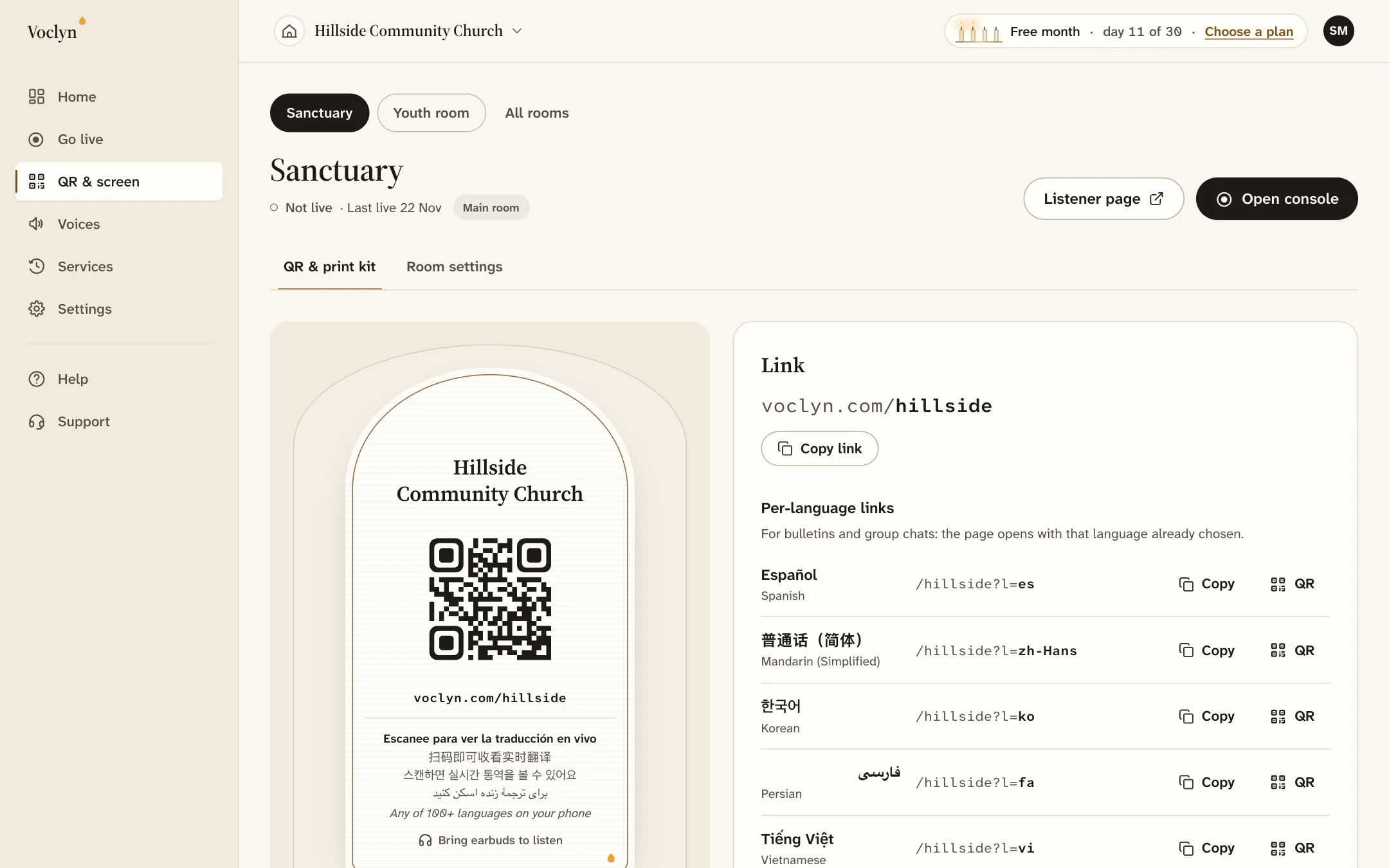
Open QR & screen in the dashboard; with more than one room, choose the room first. Its QR & print kit tab holds:
- A preview of the pew card.
- The Link, with Copy link.
- A link for each of your languages.
Above the tabs, Listener page opens what phones see, and Open console opens the room’s Go live. Home’s Your church’s link card has the same link, with Copy link, the listener page and the print kit.
Print the kit
- Under Print kit, each piece (Poster, Table tent, Pew cards, Slide) has Preview and print (Preview and download for the Slide), which opens the kit on it. Open the print kit opens it on the poster; pick another piece on its left.
- Choose Letter or A4 and press Print. Set the printer to “Actual size”, so the code scans from where people sit.
- For the screen, Download slide (PNG), or 4K for a large projector, and put it in your slides before the service.
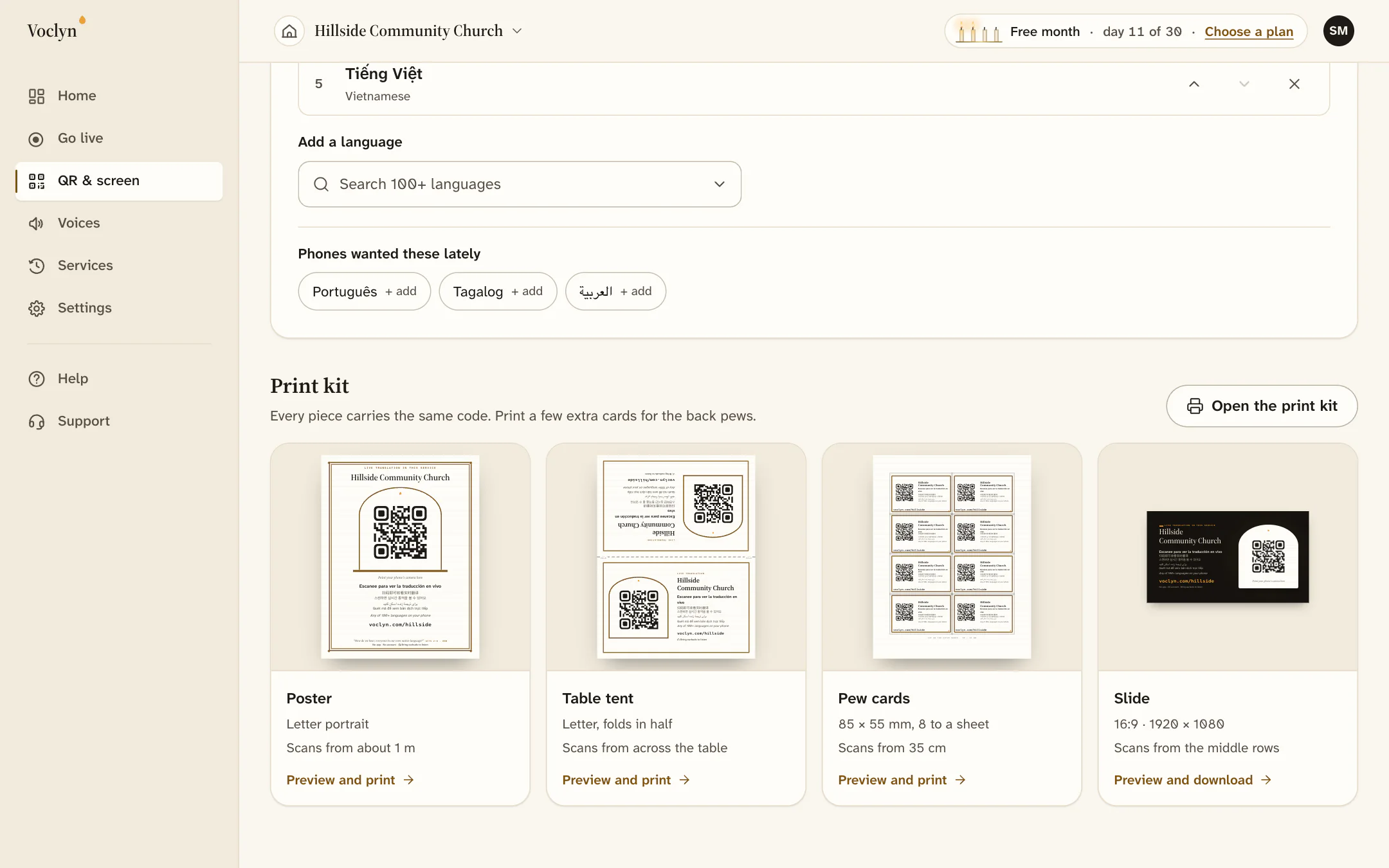
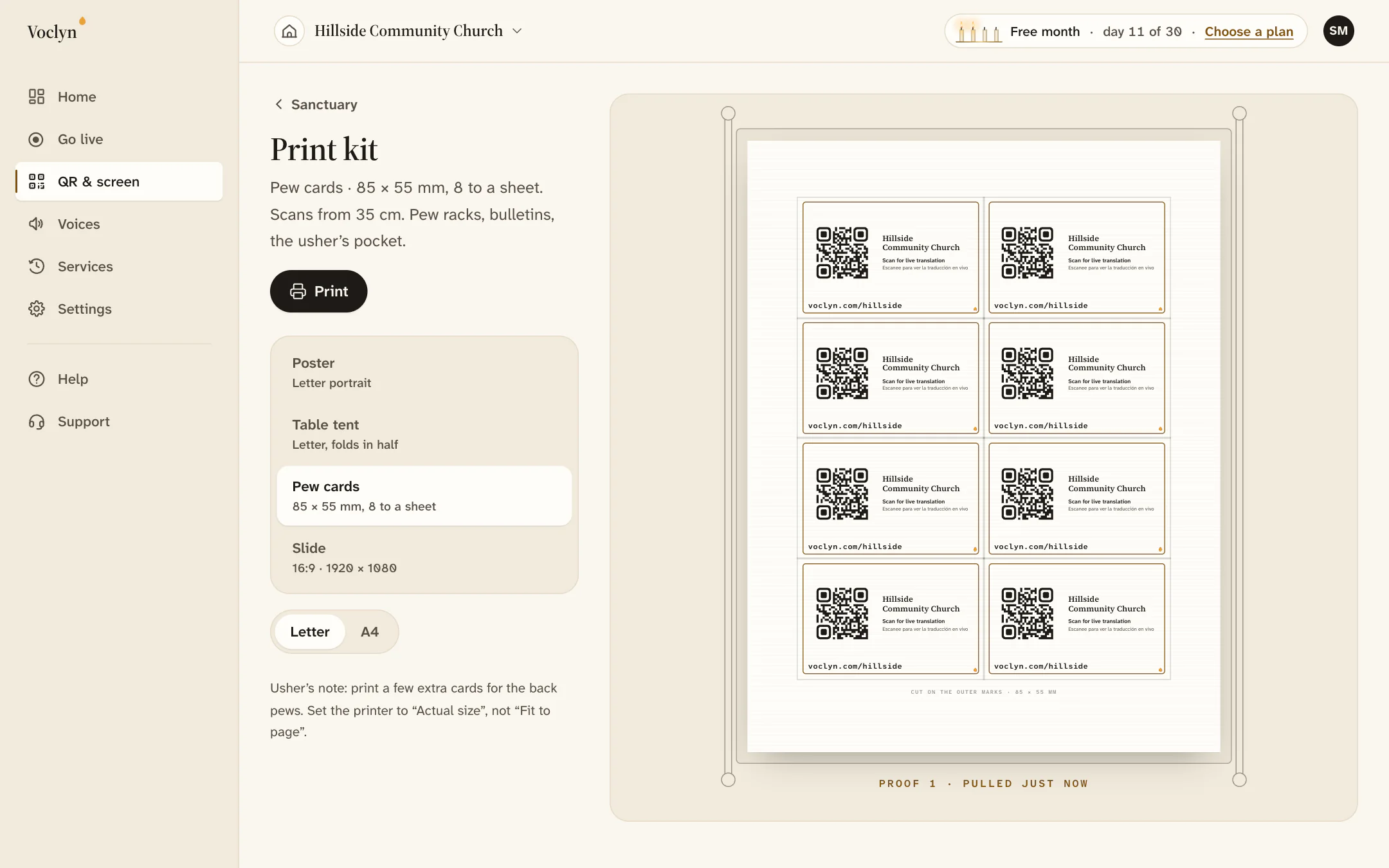
Each piece has the church’s name, the QR code, the link and “Scan for live translation” in each of your languages. The poster and the slide say Live translation in this service at the top, the table tent Live translation; pew cards have no heading, and fit up to four languages. On Church and Campus they add “Any of 100+ languages on your phone”, and with an AI voice, “Bring earbuds to listen”.
During the free month the kit prints what your church will have after it: the plan chosen in Billing, or Free if none is (the preview on the tab shows the free month’s card). Choose your plan before printing a large batch.
A link for each language
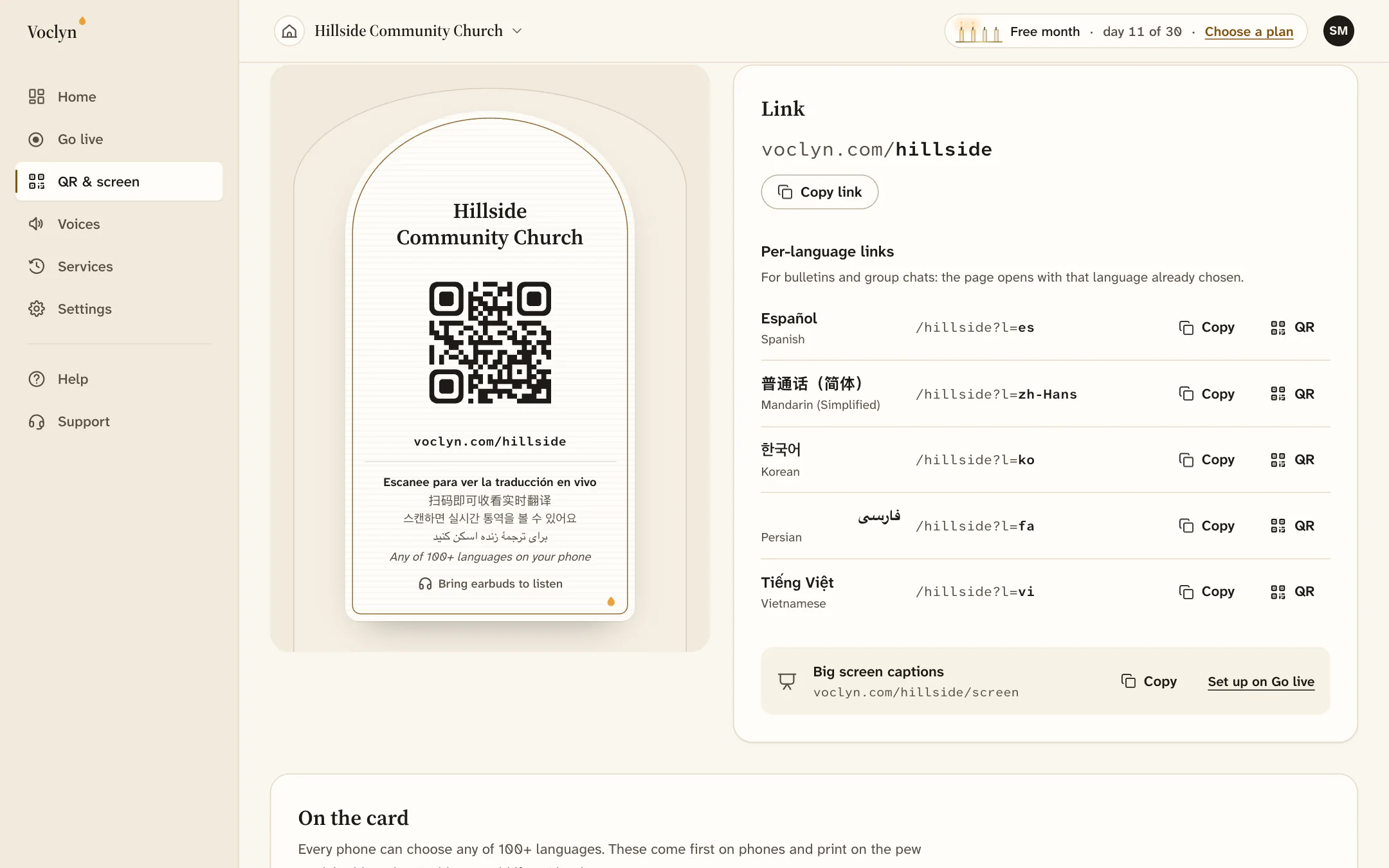
Per-language links open the page with that language already chosen, for example voclyn.com/grace-fellowship?l=es. Use them in a bulletin, a group chat or a Spanish slide. Each has Copy and its own QR.
Your languages on the card
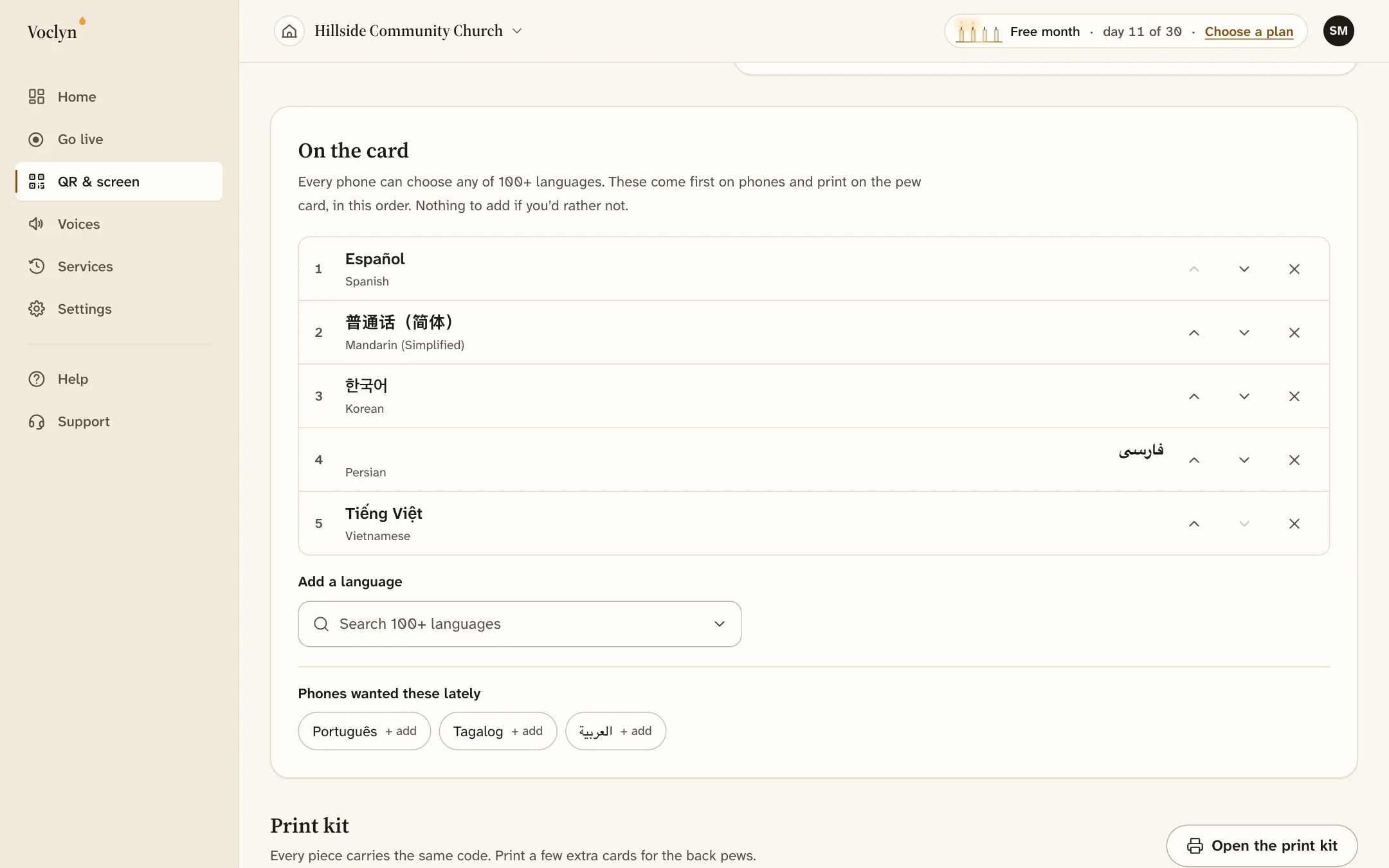
On the card lists the room’s own languages, in order (the arrows move one up or down): the ones the pew card prints. Add one by searching under the list, or with + add from Phones wanted these lately, then Save the card. Only owners and admins change it.
On Free and Chapel they are also the languages phones get. On Church and Campus, and in the free month, phones choose any of 100+. Languages: spoken, yours and every other.
Changing the link
Change it in QR & screen › Room settings › Link, then Save settings. It is checked as you type; if it is taken, try adding your city or the room’s name. The link can’t change while the room is live. The links for each language and the big screen’s link change with it.
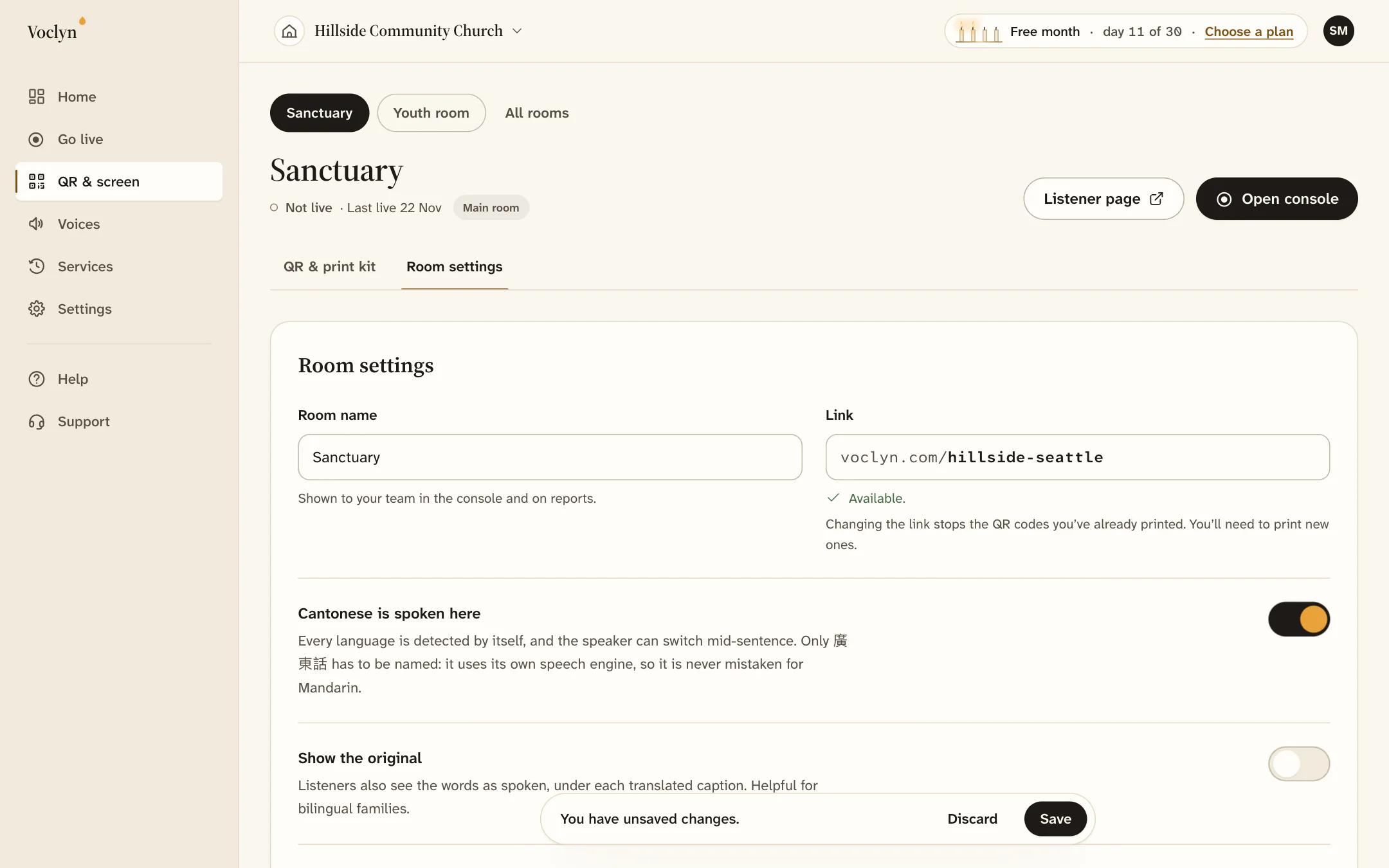
Every QR code you have printed points to the old link, and stops working when it changes. Settle the link before you print.
Test it with your phone
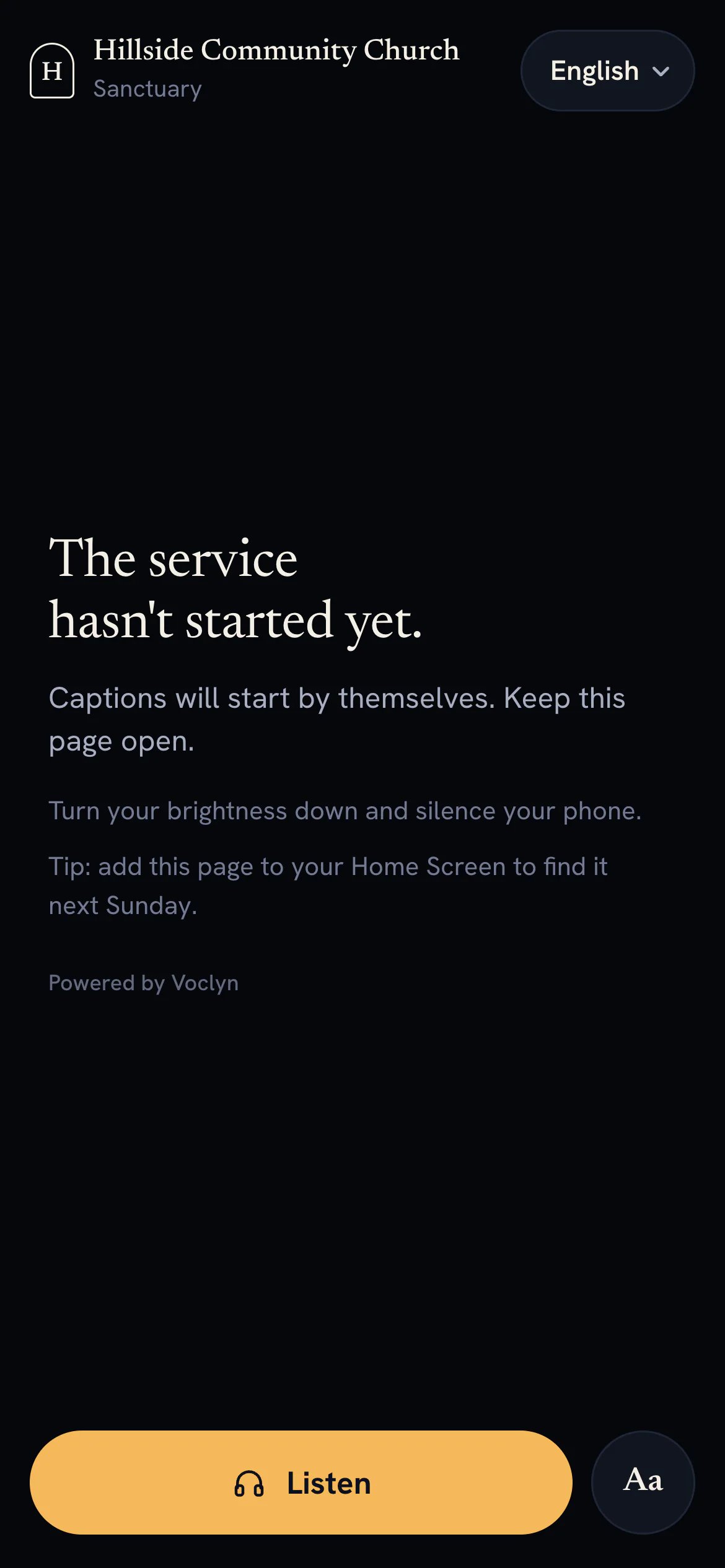
Point your phone’s camera at the code. Before the service the page says The service hasn’t started yet and starts by itself when you go live. Home’s Ready for Sunday list ticks off the test once a phone has followed a service, and the printing once anyone at the church prints the kit or downloads the slide.
Waiting
Questions
No. It follows the room's link, which changes only when someone changes it in Room settings.
Yes. The print kit's Slide is a 16:9 picture (1920 × 1080, or 4K) with the church's name and the code, ready for your presentation software.
Their phone shows that the service hasn't started yet and keeps the page ready. Captions start by themselves when you go live.
Read next
Still need help?
A person answers hello@voclyn.com Sundays 7:00–13:00 Vancouver time, and as soon as we can on other days. Say which church and room it is, what the console and the phones show, and add a screenshot if you can.
- Sunday help opens 7:00 Vancouver time.
- Sunday mornings: +1 672 667 5501 · text
- Signed in? Write from Support in the dashboard’s sidebar, and the answer comes back there.