Your team, and who does what.
Invite the people who help on Sundays from Settings › Team. An operator runs services; an admin also sets up rooms, languages, the glossary and the team; an owner can do everything, billing included.
- Seats
- 2 on Free, 3 on Chapel, 10 on Church and unlimited on Campus
- Invite
- Up to 25 addresses at once
- Invitation links
- Work once, for 14 days
- Owners
- At least one, always
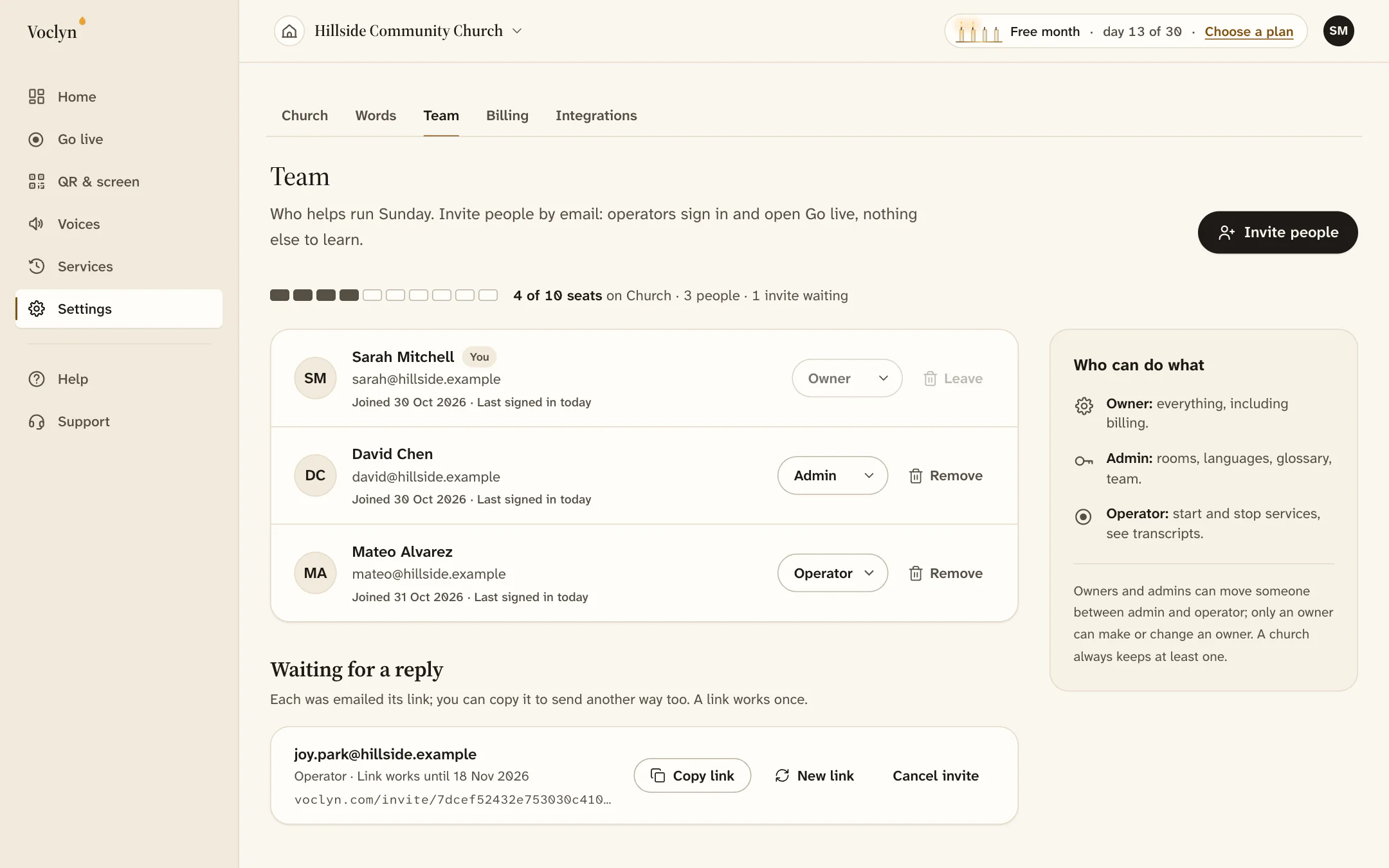
Who can do what
| Role | Can |
|---|---|
| Owner | Everything, including the plan, the card, cancelling and deleting the church. Only an owner makes, changes or removes an owner. |
| Admin | Rooms, languages, the big screen, voices, the glossary and Bibles, church details, the team, API keys and webhooks, and correcting transcripts. Sees Billing, without changing it. |
| Operator | Go live and run services, set up the big screen on Go live (on Free and Chapel, the languages phones get too), print the kit, read and download services and transcripts, the booth buttons, and their own support messages. |
Invite people
- In Settings › Team, choose Invite people.
- Type up to 25 email addresses, separated by commas or new lines.
- Choose Operator or Admin, then Create invite links.
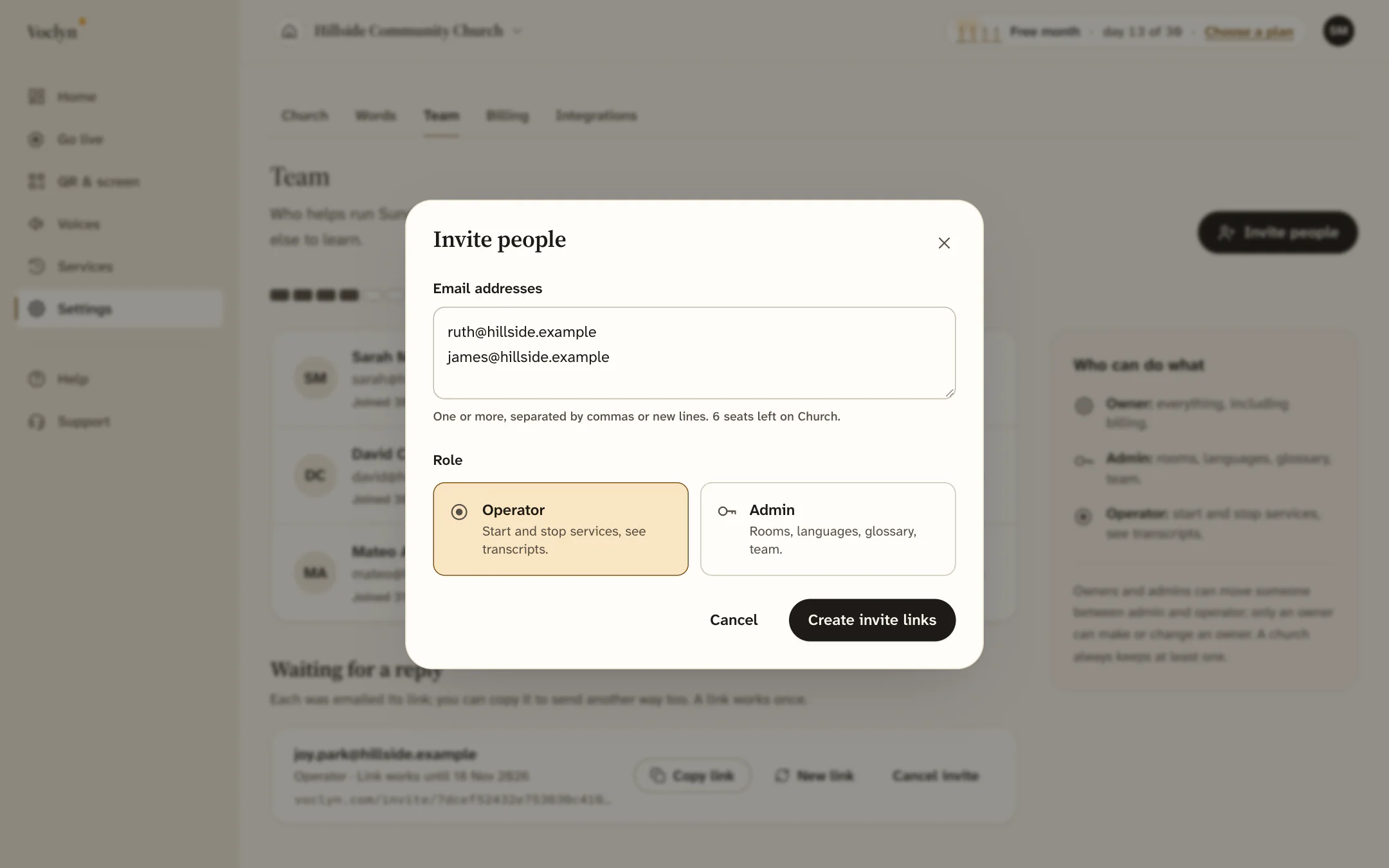
The dialog then shows each person’s link with Copy link, and Emailed once the email has gone; addresses already on the team are listed under Not invited. Each email has a Join button with the church’s name. The link works once, for 14 days. Until it is used, the invitation waits under Waiting for a reply, with Copy link, New link and Cancel invite, and it counts as a seat; an expired one says Link expired.
Joining a church's team
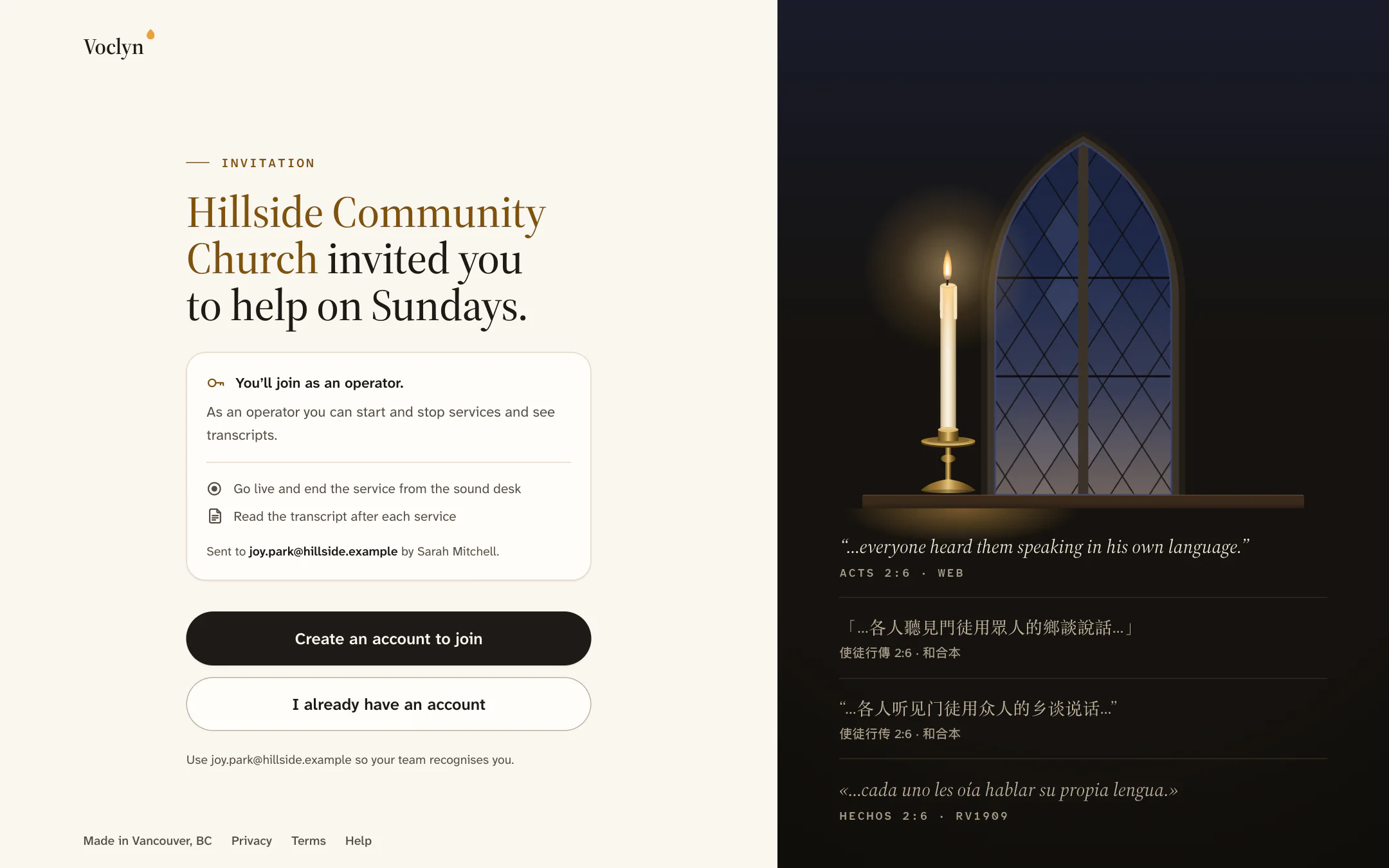
The link opens a page that says, for example, Grace Fellowship invited you to help on Sundays. Choose Create an account to join, or I already have an account. A new account types their name (the invited address is filled in), presses Create account, confirms the email with one more tap, then chooses a password and Save and join your team. Everyone signs in as themselves; there is no shared password.
Change a role, or remove someone
Each person’s role has a menu beside their name, with Remove; your own row says Leave. Owners and admins can move people between admin and operator; only an owner can make or remove an owner. A church always keeps at least one owner. An operator leaves from their Account page.
Handing the church to someone else? Make them an owner first, then leave or change your own role.
Seats
Seats, the owner included: 2 on Free, 3 on Chapel, 10 on Church and unlimited on Campus. When every seat is taken, Invite people can’t be pressed, and the owner sees More seats on a larger plan. With more people than seats after a plan change, everyone keeps their access; new invitations wait for a plan with more seats.
Questions
No. Operators run services and see what they need on Sunday: Go live, QR & screen, Services and the booth buttons. Settings are for owners and admins.
Ask someone on the team for a new link: Settings › Team › Waiting for a reply › New link. The old link stops working.
Read next
Still need help?
A person answers hello@voclyn.com Sundays 7:00–13:00 Vancouver time, and as soon as we can on other days. Say which church and room it is, what the console and the phones show, and add a screenshot if you can.
- Sunday help opens 7:00 Vancouver time.
- Sunday mornings: +1 672 667 5501 · text
- Signed in? Write from Support in the dashboard’s sidebar, and the answer comes back there.