Your dashboard’s Home.
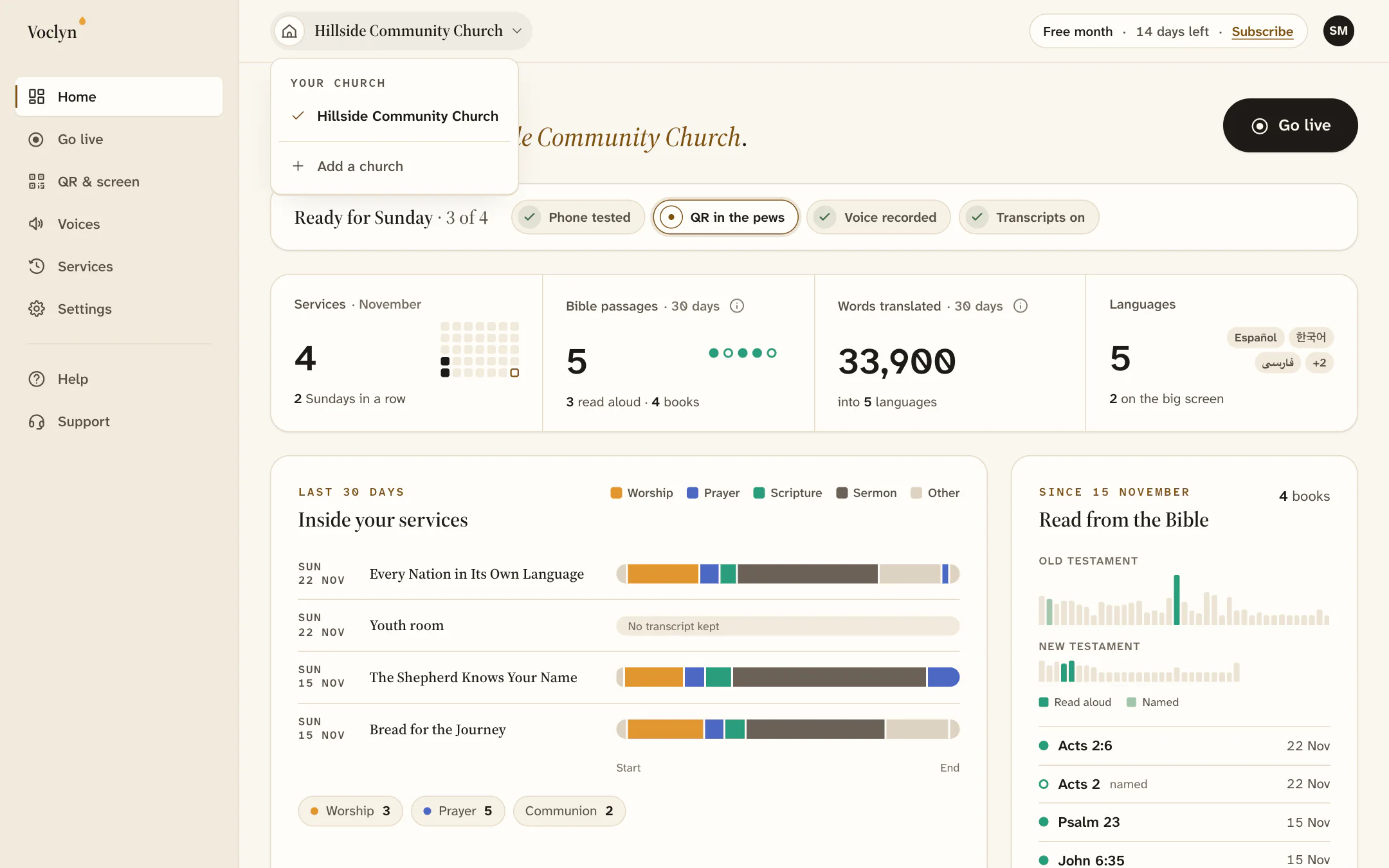
Home shows what your services held: how many there were, what was read and said in them, and in which languages. Go live is always at the top, and every other part of Voclyn is in the sidebar beside it.
- Who
- Everyone on the team
- Ready for Sunday
- Ticks itself off; owners and admins
- A service
- 10 minutes or more
- Operators
- Your Sunday at the top
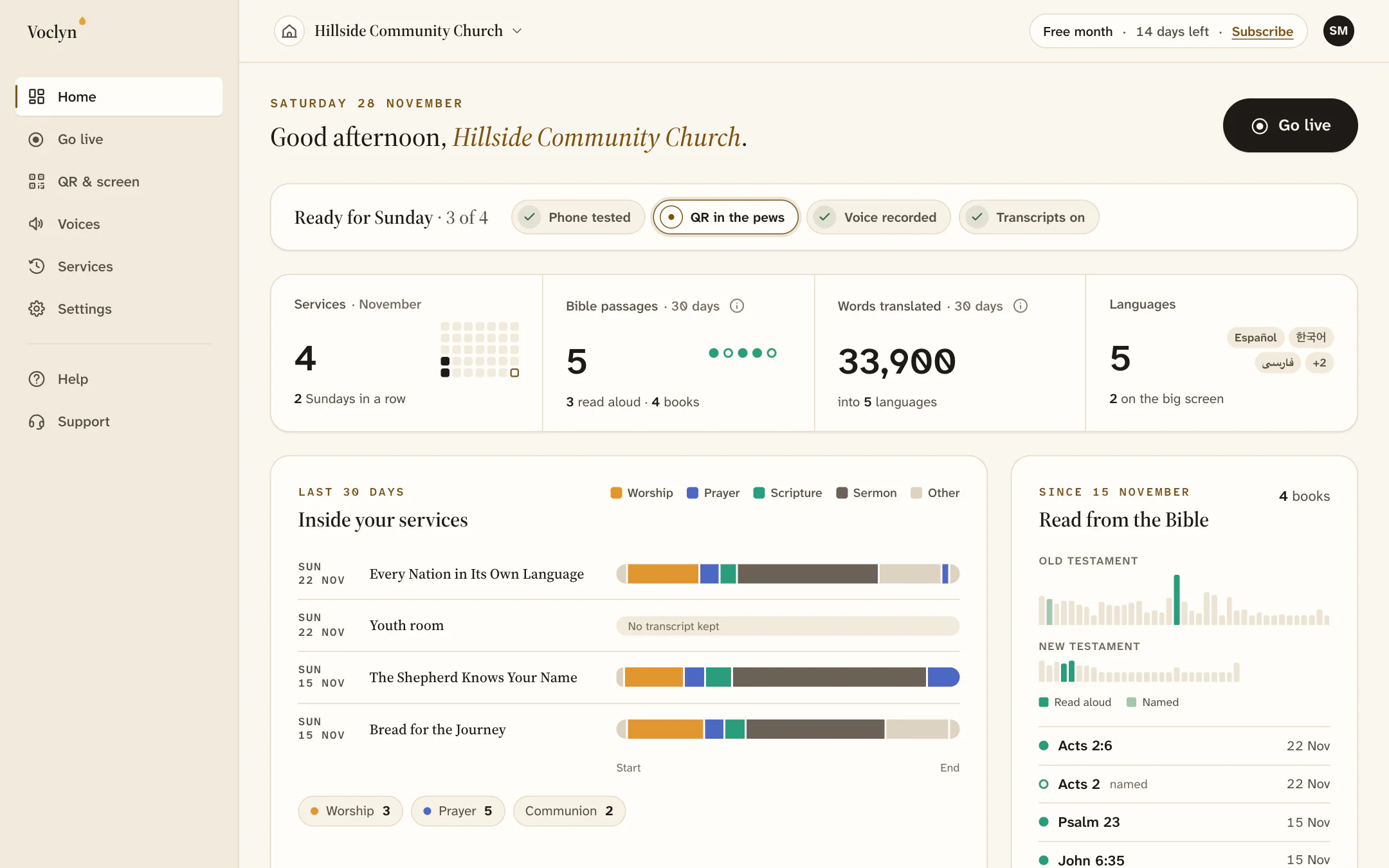
From top to bottom
- Go live opens the console at the sound desk, for your main room. During a service it says Live now · Open, and takes you back to it.
- Ready for Sunday shows what is left before people can follow, with the next step marked.
- The numbers: your services this month, the Bible passages read, the words translated and your languages.
- Inside your services: each service of the last 30 days as one bar, from its start to its end.
- Read from the Bible: the books read in your services this year, and the latest passages.
Further down, Last service sums up your most recent service, and Your church’s link has the link, its QR code, Copy link and Print kit.
Ready for Sunday
A line of the steps that make a church ready, in the order they matter. Each ticks itself off as it happens; nothing is ticked by hand. A step still to do opens the place where it is done.
| Step | Done when |
|---|---|
| Test with your phone | A phone has followed one of your services, even a short test. It then reads Phone tested. |
| QR in the pews | Someone at the church printed the kit or downloaded the slide: QR printed. |
| Record a voice | Optional, on plans with voice cloning: a voice made from your pastor's, with their written permission. Then Voice recorded. |
| Keep transcripts | Your main room keeps each service's transcript, as a new church does: Transcripts on. |
When every step is done, the line goes away. Only owners and admins see it.
The numbers
| Number | What it counts |
|---|---|
| Services | Services of 10 minutes or more this month, with five weeks of squares, Sundays down the first column. Under it, how many Sundays in a row had one. |
| Bible passages | Passages read aloud (a dot) or only named (a ring) in the last 30 days, as each service's summary found them, and from how many books. |
| Words translated | About how many words were shown in another language in the last 30 days, on the big screen and on phones alike. |
| Languages | The languages your services were shown in, and how many of them your big screen shows. |
The small i beside a number says what it counts.
Inside your services
Each service of the last 30 days is one bar, newest first, from its start to its end, in the order things happened: Worship, Prayer, Scripture read aloud, the Sermon (Teaching on a weekday) and Other moments such as the welcome, the offering, communion or the blessing. Point at a part to see what it was and how far into the service it came; press a service to open its report. Under the bars are the month’s worship, prayers, communions, baptisms and testimonies.
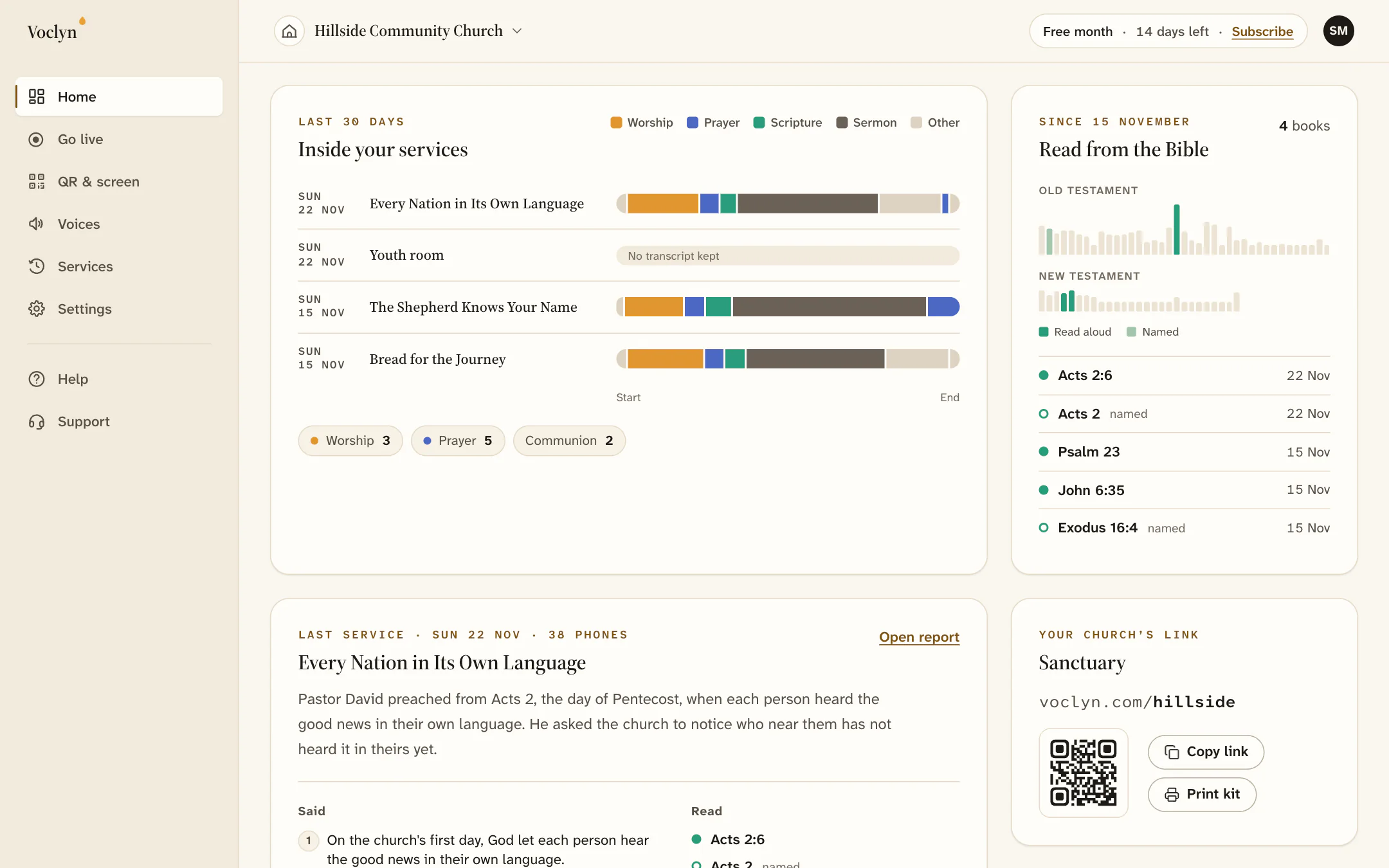
The bars come from each service’s summary, written from its transcript after the service ends. A service without one says why: its summary is on its way, too little was said, or it keeps no transcript (No transcript kept). Past services.
Read from the Bible
A shelf with a spine for every book of the Bible, the Old Testament above the New, each as tall as its chapters. A book lights up when a service read from it aloud, and more softly when it was only named, over the last year. Under the shelf are the passages of the last 30 days, newest first.
Last service, and your link
Last service is your most recent service of 10 minutes or more: what it was about, three things that were said, the passages read and what happened in it, and how many phones followed when any did. Open report has all of it, with the transcript.
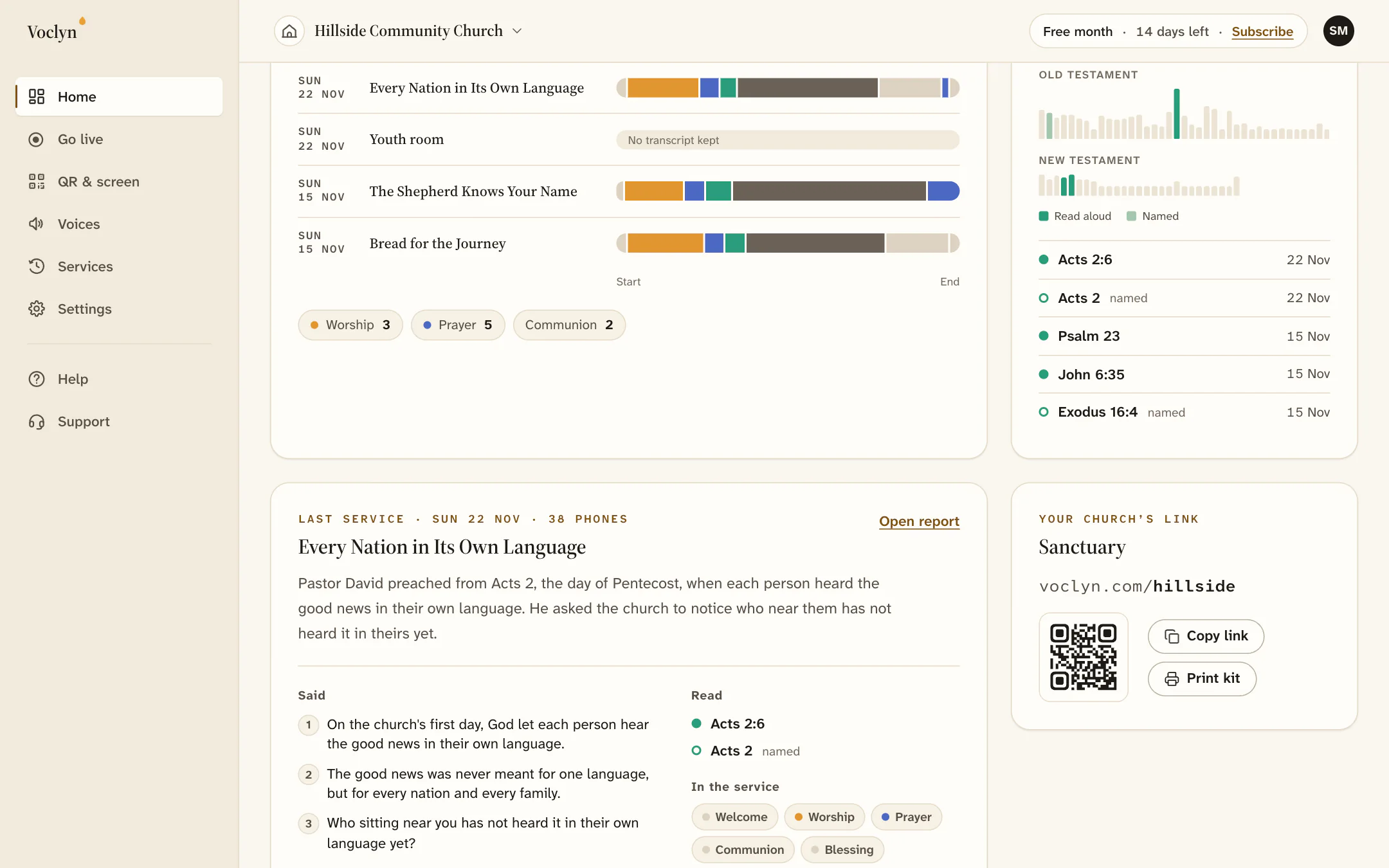
Your church’s link has the link people type, its QR code, Copy link and Print kit; its title opens QR & screen. The QR code.
Before your first service
Until your first service of 10 minutes or more, Home says welcome and shows the steps, your link and QR code, an example of the bars (marked Example) with Test with your phone, and the Bible shelf still dark. Before your first Sunday.
The free month
Every church starts with 30 days of the Church plan, normally US$99 a month, with nothing charged unless you choose a plan. The bar at the top of every page counts the days left and opens Billing, which marks each Sunday of the month on which you held a service of 10 minutes or more. Plans and the free month.
During a service
While a service is live, Home shows it at the top, and Go live becomes Live now · Open; the sidebar’s Go live has a small live dot on every page. Going back to the console never interrupts the service. Go live: the console.
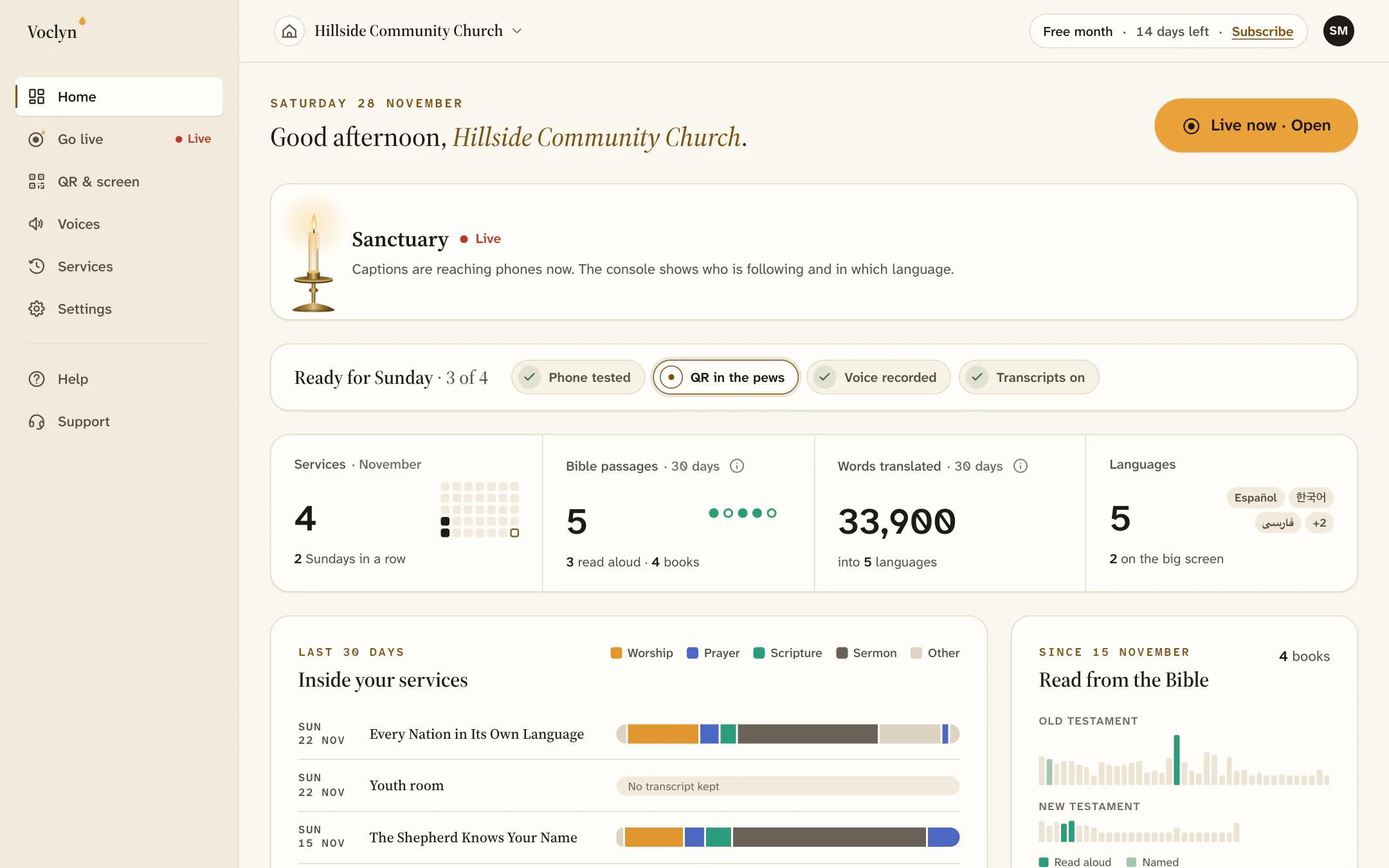
What an operator sees
Someone who runs the sound desk, invited as an operator, sees Your Sunday at the top instead of Ready for Sunday: three things at the sound desk. The rest of Home is the same. Their sidebar has Home, Go live, QR & screen, Services and Booth buttons; settings are for owners and admins. Your team and roles.
Your church, or another
The church’s name at the top left opens a menu with your other churches and Add a church. The menu under your initials, at the top right, has your account, the theme, Help, Support and Sign out. Sign-in and your account.
Questions
No. It opens the console, where you check the sound, then press Go live when the service begins.
Every step is done: the line goes away by itself.
Its bar comes from its summary, written from its transcript after the service. The summary may still be on its way, too little may have been said, or the service keeps no transcript: then it says No transcript kept.
At the top of every page: the free month's days left, or your plan, a press away from Billing.
Read next
Still need help?
A person answers hello@voclyn.com Sundays 7:00–13:00 Vancouver time, and as soon as we can on other days. Say which church and room it is, what the console and the phones show, and add a screenshot if you can.
- Sunday help opens 7:00 Vancouver time.
- Sunday mornings: +1 672 667 5501 · text
- Signed in? Write from Support in the dashboard’s sidebar, and the answer comes back there.