Go live from the sound desk.
Open Go live on the computer at the sound desk, turn on the sound and test it, then press Go live once. To end, press End the service and confirm. New to it? Tour, at the top, is a short practice.
- Who
- Anyone on the team, operators included
- To start
- Press Go live, once
- To end
- Press End the service, then confirm
- Keys
- L · S · W · B
Open the console
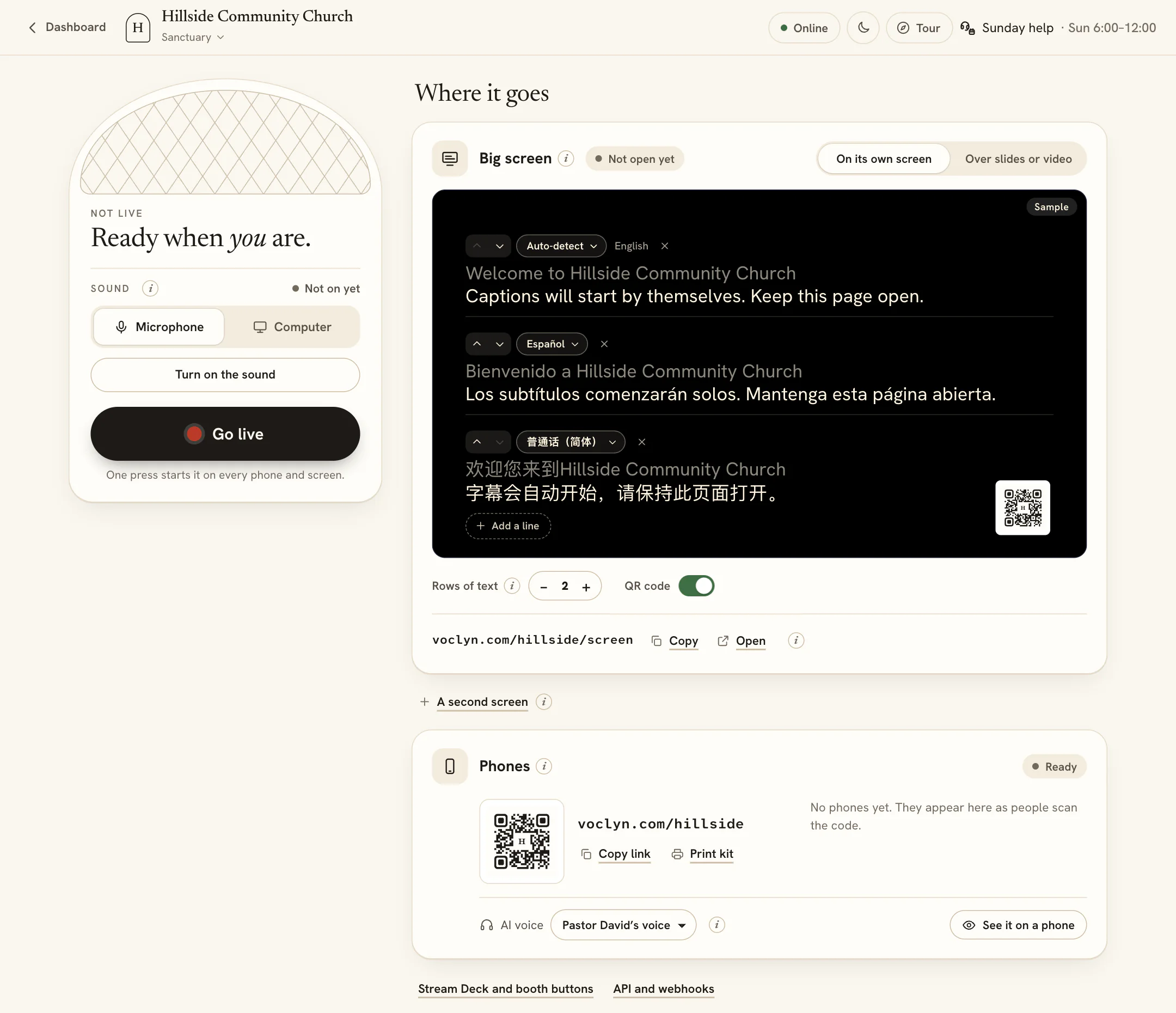
Choose Go live in the sidebar, or Open console on a room. On the left is the desk: the service in a few words, the sound, and the one button that starts and ends it. On the right, Where it goes: the big screen, then phones.
With more than one room, the room’s name under the church’s switches room while nothing is live. The lights go down by themselves while a service is live; the moon at the top turns them down or up.
The first time Go live opens in a browser, a short tour opens with it (never while a service is live): a practice that points at each part and waits for your press, with nothing sent to phones or screens and nothing saved. Tour, at the top, plays it again; Skip tour or Esc ends it. The new Go live says what changed, with a practice console to try.
Use a laptop on its charger. A phone or tablet works too: keep the page in front for the whole service, because the sound stops if you switch apps.
Before the service: the sound
- Under Sound, choose Microphone for the mixer’s cable or a microphone in the room, or Computer for a meeting or livestream on this computer: Zoom, Teams and Google Meet.
- Press Turn on the sound, allow it when the browser asks, and pick the input. The level is said in words, such as Good level.
- Press Test the sound and say a few words. They come back with the language heard, such as English · detected. Only this console sees them; it stops by itself after 30 seconds.
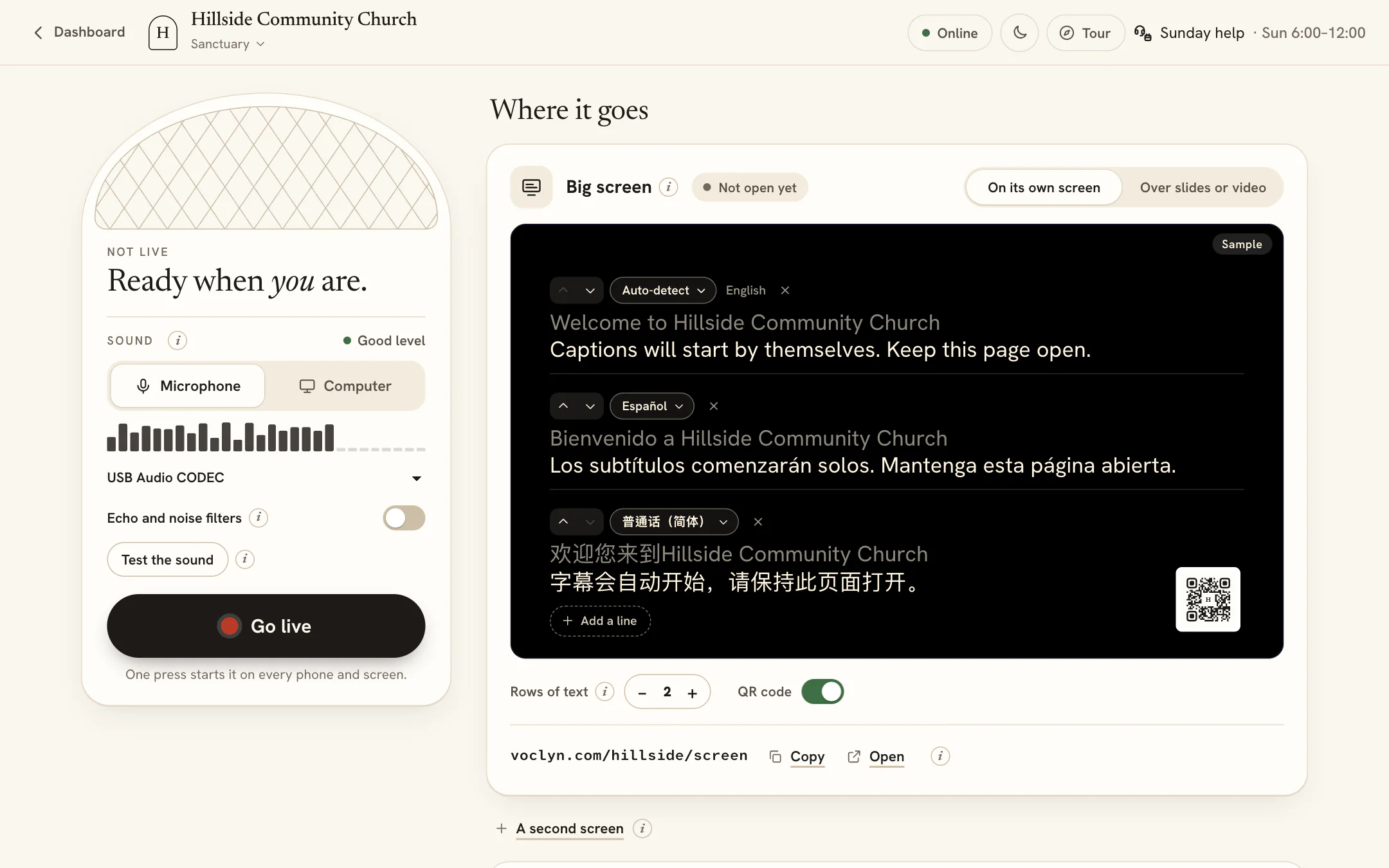
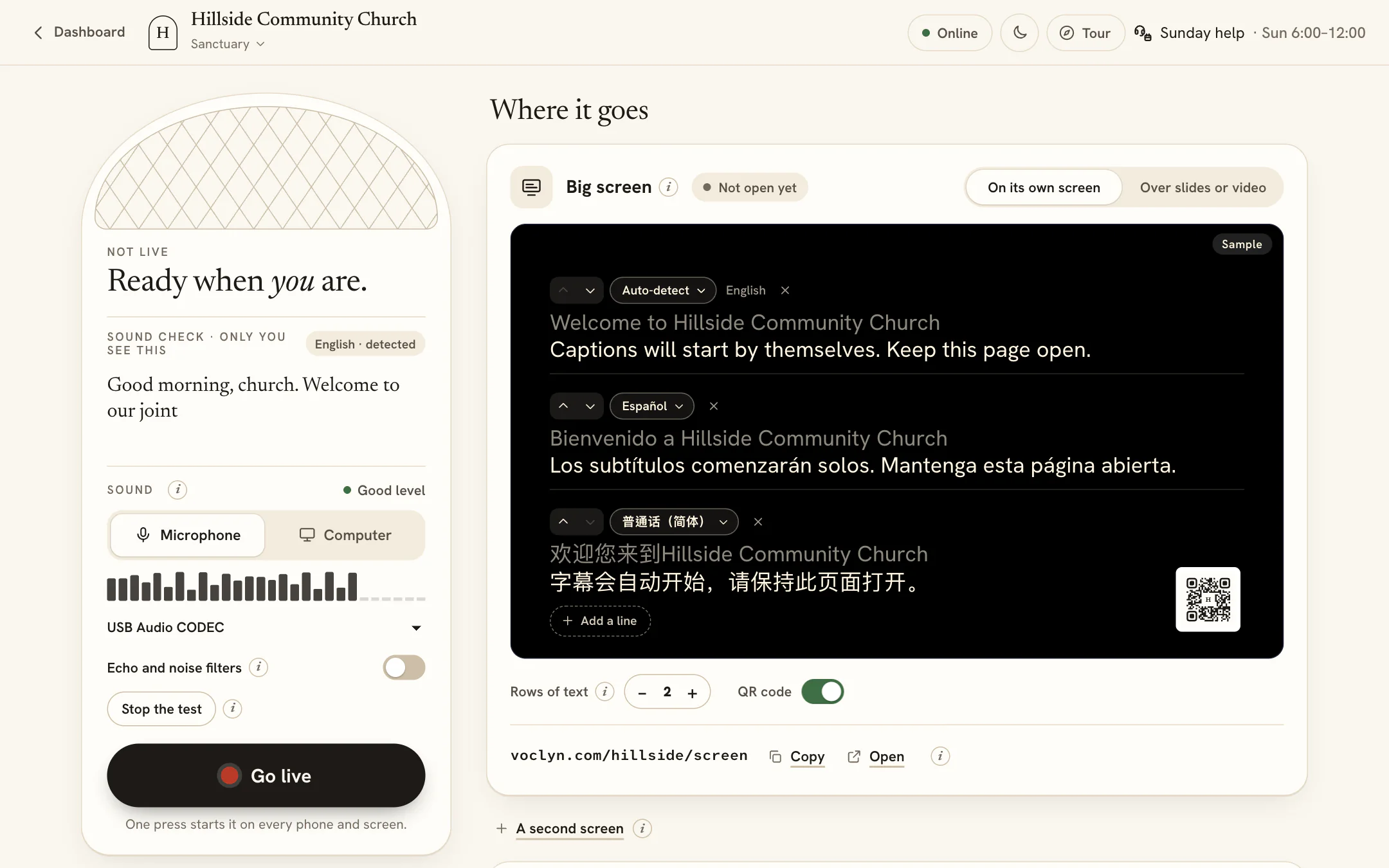
Echo and noise filters set themselves from the input’s name: on for a microphone in the room, off for a cable from the desk. On Free, the free hours left this month show under Go live. Sound from the desk.
Go live
- Press Go live, once.
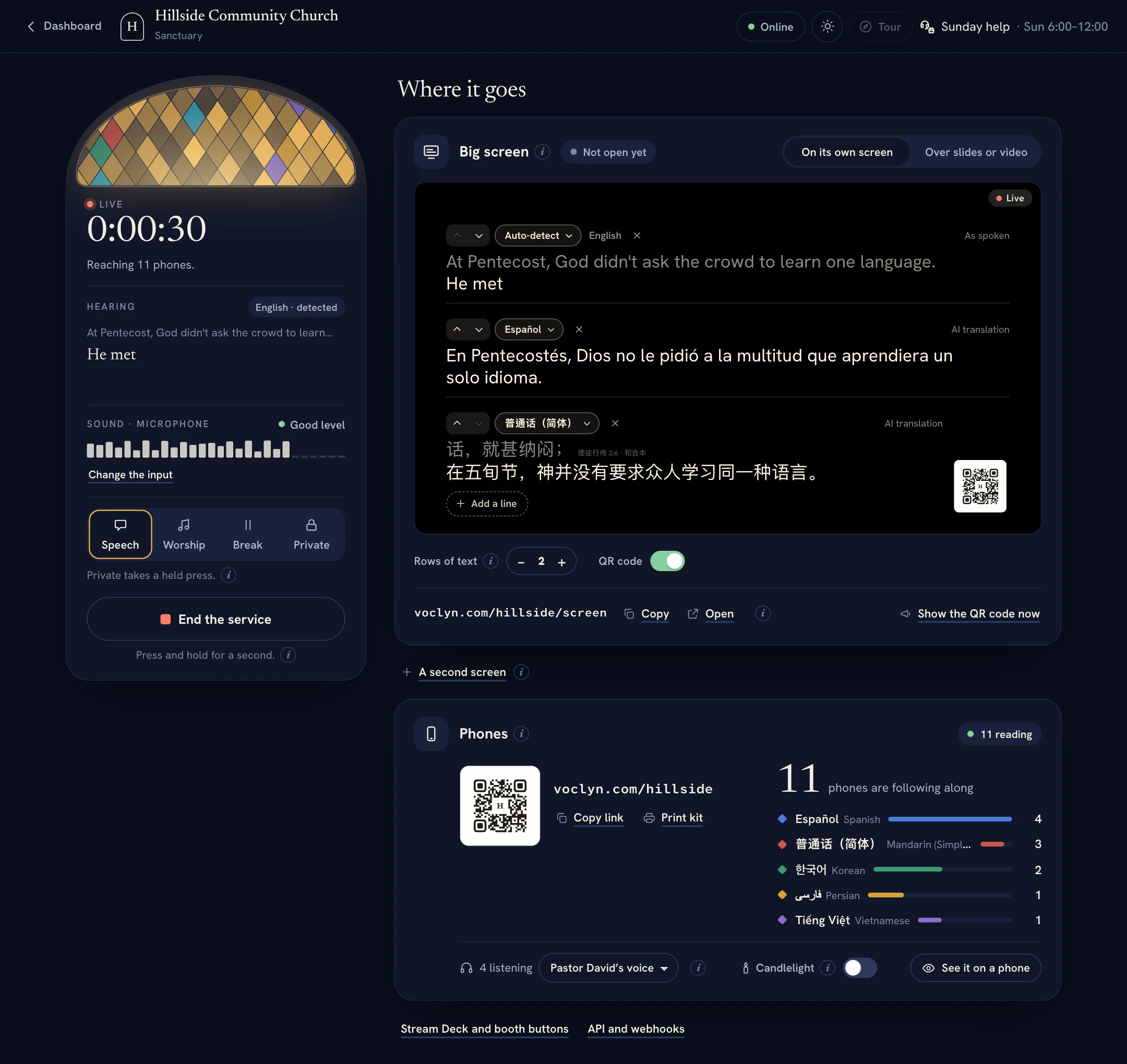
- The desk says Live, with the service’s clock and how many phones and screens it reaches.
- Every phone and the big screen go from waiting to live by themselves.
If the console hears nothing, it asks first: The console hears no sound. Fix the sound, or press Go live anyway.
During the service
| Press | Phones show | Use it |
|---|---|---|
| Speech · S | Captions, sentence by sentence | Whenever someone speaks, reads or prays aloud |
| Worship · W | Worship · captions resume when someone speaks | While the band plays; nothing is translated |
| Break · B | Translation paused | Announcements you'd rather not caption, a pause |
| Private | A private moment. Captions will return shortly. | Prayer requests and members' news: nothing is shown, heard or saved |
Private takes a held press, to start and again to go back. After 15 minutes of Worship or 8 of a Break, the desk asks Is someone speaking?
Hearing writes the words as they are heard, with the language detected. A guest preacher, with your church’s own voices? Choose Standard AI voice in the Phones card: it reads from the next sentence.
Where it goes
- Big screen: the screen as the room sees it, set up on itself. The big screen.
- A second screen: another link with its own lines and look, for a livestream or another room.
- Phones: the QR code (press it to show it large), the link with Copy link and Print kit, and the phones reading now, by language. Under them, the AI voice and whose voice it is, and while live, Candlelight: warm, dim text on every phone, for this service.
- See it on a phone opens the page people see, beside the desk: choose a language and press Listen.
- Stream Deck and booth buttons, and for owners and admins API and webhooks, open beside the console, which keeps running. Integrations.
End the service
- Press End the service, then End the service again in End the service? Holding it for a second ends it at once.
- Phones and the desk say Go in peace. Beside it, The service has ended. says how long it ran, the most phones at once and the languages read.
- See the summary opens its report; Done puts it away. Past services and transcripts.
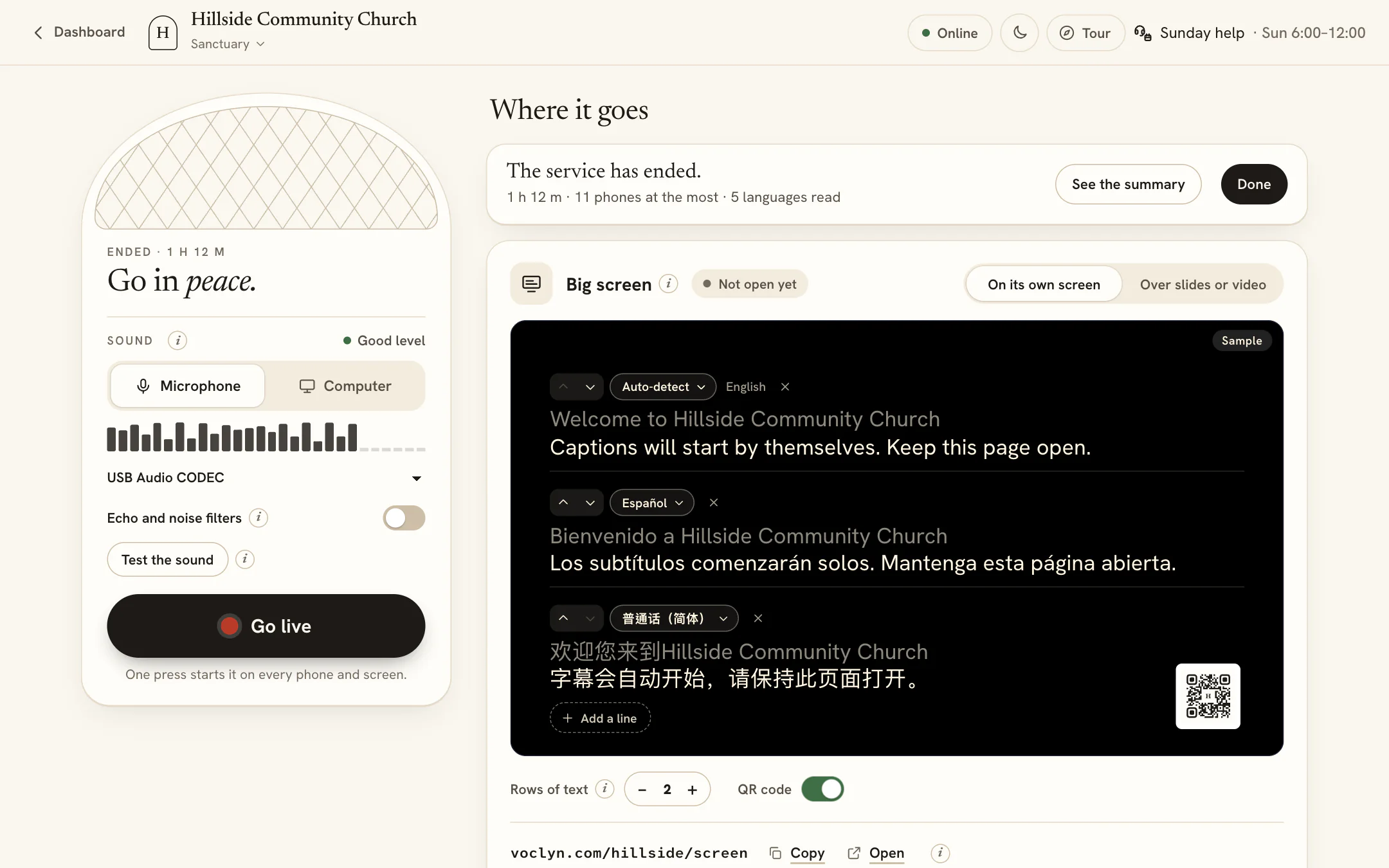
Ended too soon? Press Go live again: a new service starts, and phones follow by themselves.
Leaving the console while live asks first: The service is still live. Done with it? End the service and leave ends it properly on every phone, then opens the Dashboard. Leave it running keeps phones on the service with no new words: come back within a minute and a half and continue it, or it ends by itself and phones say it stopped for a technical reason.
Two consoles, one service
Opening Go live on a second device never takes a service over. To move the sound there, press Continue the service here. The first console then says Another console took over this service, with Take it back.
If the desk computer fails mid-service, open Go live on another computer or phone and press Continue the service here. Phones keep everything they had. Something stopped mid-service.
Keyboard
| Key | Does |
|---|---|
| L | Moves to Go live, or to End the service while live |
| Space or Enter | Presses it: Go live with one press; End the service held |
| S · W · B | Speech, Worship, Break |
Questions
Phones stay on the service but get no new words. Open Go live again within 15 minutes and press Continue the service here; otherwise the service ends by itself.
The console reconnects by itself and the same service carries on. Meanwhile phones keep the captions they have and say the church’s connection dropped; the service waits up to 15 minutes for the console before it ends.
No. The words come back to this console only: nothing reaches phones or screens, and nothing is saved.
As long as it needs to. A service left running for 12 hours ends by itself. When nothing has been said for 30 minutes, the console asks “Still on?”: press Keep it on, or simply speak, and it goes on; with no answer and nothing said, it ends by itself 10 minutes later.
Yes, with a booth key: its buttons press the same buttons as the desk. Go live works while the room's console page is open on the sound desk computer.
Yes: press Tour at the top of Go live. It runs on a practice service, so nothing reaches phones or screens and nothing is saved; Skip tour ends it whenever you like.
Read next
Still need help?
A person answers hello@voclyn.com Sundays 7:00–13:00 Vancouver time, and as soon as we can on other days. Say which church and room it is, what the console and the phones show, and add a screenshot if you can.
- Sunday help opens 7:00 Vancouver time.
- Sunday mornings: +1 672 667 5501 · text
- Signed in? Write from Support in the dashboard’s sidebar, and the answer comes back there.