Zoom, Teams and Google Meet, translated.
When a service or meeting is held on Zoom, Microsoft Teams or Google Meet, the Voclyn console takes its sound straight from the computer: nothing to install, no microphone held to a loudspeaker. Under Sound, choose Computer, share the meeting’s tab or the entire screen with its sound, and go live.
- Source
- Computer, under Sound
- Browser
- Chrome or Edge, on a computer
- Works with
- Zoom, Teams, Meet, Webex, livestreams
- People at home
- The room's link, in the meeting chat
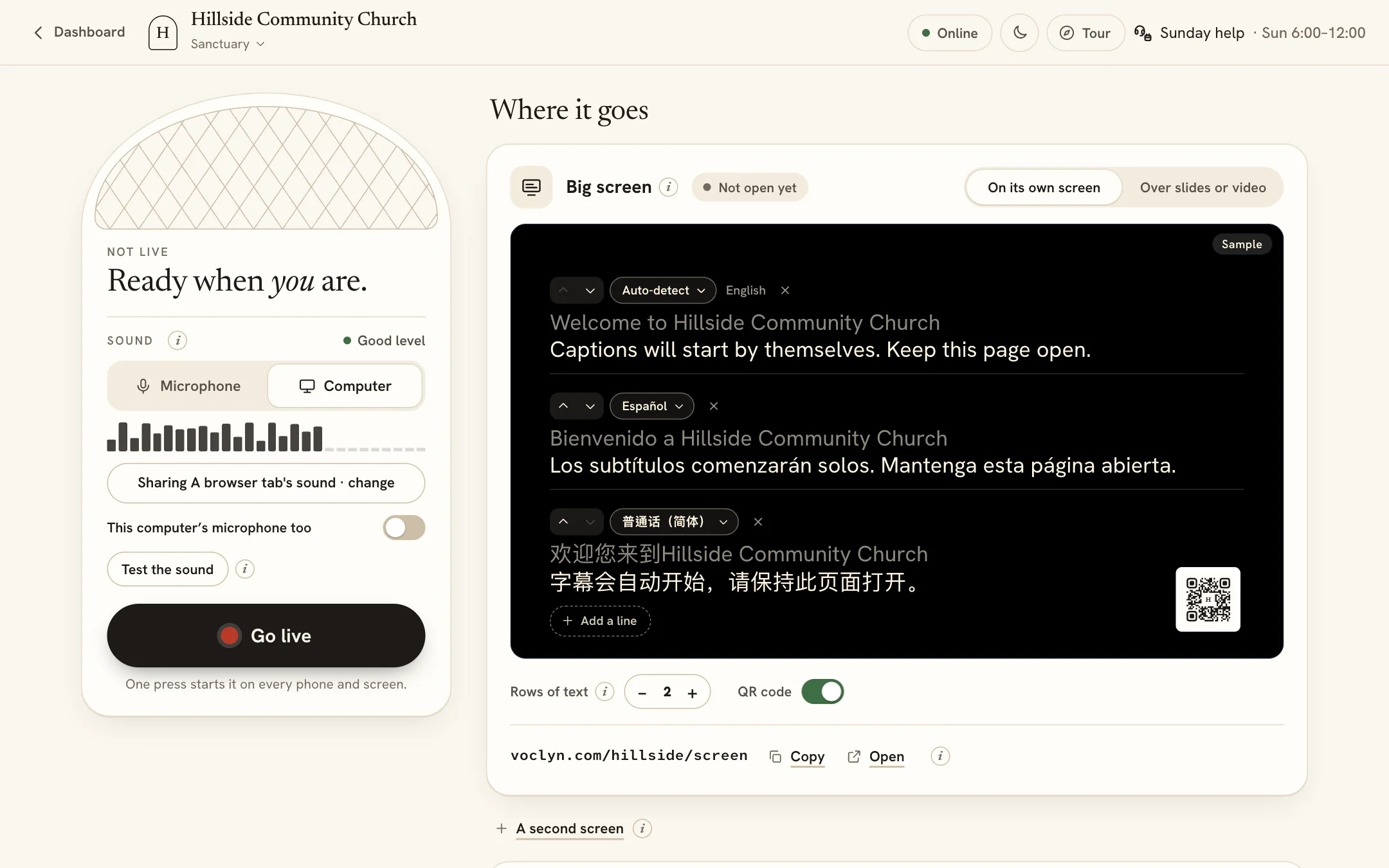
Two ways, by where the meeting runs
The console takes the sound through the browser’s own share window, the one you see when you share a screen in a web meeting. It uses only the sound: nothing of your screen is shown or kept. What you pick there depends on where the meeting runs on this computer:
| The meeting runs in | In the share window | Works on |
|---|---|---|
| A browser tab | Chrome Tab, then the meeting’s tab, with Also share tab audio on | Every computer |
| The Zoom or Teams app | Entire Screen, with Also share system audio on | Windows and Chromebooks; a Mac with a recent Chrome and macOS |
Either way, open the console in Chrome or Edge on a computer. Safari and Firefox can’t share sound: there, the console says This browser can’t share sound: open the console in Chrome or Edge. A phone or tablet doesn’t offer Computer at all.
The meeting in a browser tab
The simplest way, and it works on every computer: Windows, Mac, Chromebook or Linux.
- Join the meeting in a tab of Chrome or Edge: Zoom’s Join from your browser (app.zoom.us), Teams on the web (teams.microsoft.com, or Continue on this browser from the invitation), Google Meet, Webex in the browser, or a YouTube or Facebook livestream.
- Open Go live in another tab or window. Under Sound, choose Computer, then press Share the meeting’s sound to check the level first (or press Go live straight away: it asks the same).
- The browser asks what to share. Choose Chrome Tab (in Edge, Microsoft Edge Tab), pick the meeting’s tab, keep Also share tab audio on, and press Share.
- The console says Sharing A browser tab’s sound · change, and the level moves when someone speaks in the meeting.
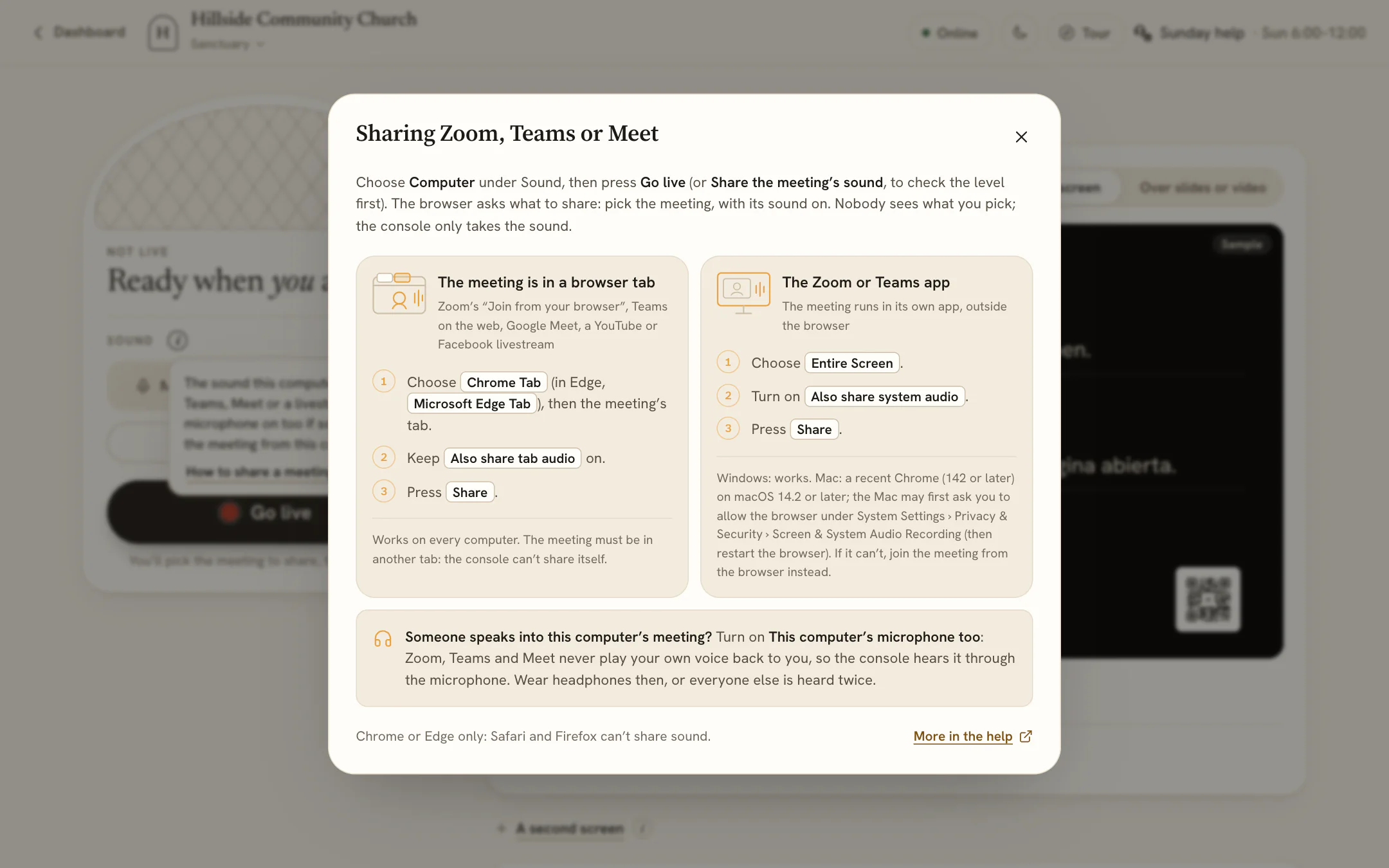
The console’s own tab isn’t in the list, because it can’t share itself: the meeting needs a tab of its own. You still hear the meeting on this computer as before.
The Zoom or Teams app
- Under Sound, choose Computer, then press Share the meeting’s sound (or Go live straight away).
- In the browser’s share window, choose Entire Screen, pick the screen, turn on Also share system audio, and press Share.
- The console says Sharing This computer’s sound · change.
This works on Windows and on Chromebooks. A Mac needs a recent Chrome (142 or later) on macOS 14.2 or later: Chrome’s menu › Help › About Google Chrome, and the Apple menu › About This Mac, say which you have. The first time, the Mac may ask you to allow the browser under System Settings › Privacy & Security › Screen & System Audio Recording (Screen Recording on macOS 14): allow it, restart the browser, and open the console again.
No Also share system audio under Entire Screen? This computer can’t share its sound that way. Open the meeting in a browser tab instead (in Zoom, Join from your browser) and share the tab.
The entire screen shares everything this computer plays: notifications, a video in another tab, other apps. Silence them for the service. And pick a tab or the entire screen rather than a window: a window often comes without its sound.
Someone speaks at this computer
Zoom, Teams and Meet never play your own voice back to you. So when the pastor, a reader or a host speaks into the meeting on this computer, their voice isn’t in the shared sound, and phones would miss it.
- Once the meeting is shared, turn on This computer’s microphone too. The console mixes this computer’s microphone into the meeting’s sound.
- The browser asks again what to share: pick the same tab or screen, and allow the microphone. The console then says, for example, Sharing A browser tab’s sound and the microphone · change.
- Under the switch, check that the microphone chosen is the one the speaker uses.
With the microphone on, wear headphones. Through the speakers, everyone else in the meeting reaches the microphone too, and is heard twice.
Turning the switch on or off, or choosing another microphone, makes the browser ask what to share again: pick the same tab or screen. The console remembers the switch in this browser. Nobody speaks at this computer? Leave it off.
Another way: run the console on a second computer that joins the meeting too, in a browser tab, with its microphone muted in the meeting. Share that tab: the speaker’s voice then reaches it through the meeting, like everyone else’s.
Check the level
Watch the level while someone in the meeting speaks at their normal volume. The console says what to do, in words:
| The console says | Do this |
|---|---|
| “Good level” | Nothing: you're ready. |
| “Too quiet. Turn up the meeting.” | Turn the speaker volume up in the meeting's audio settings (for a livestream, the player's volume). |
| “Too loud. Turn down the meeting.” | Turn it down in the same place. |
| “No sound. Is anyone speaking?” | Nobody is speaking yet, the meeting is muted on this computer, or its sound wasn't shared. |
Then press Test the sound while someone speaks in the meeting: their words come back on the console, with the language heard.
Share the sound a few minutes early, while people chat in the meeting: the console hears them, and pressing Go live goes straight to live. If the meeting has been silent since you shared it, the console asks first, The console hears no sound. When the meeting is only quiet, choose Go live anyway.
Bring in the people in the meeting
- On the console, the Phones card has the room’s link: press Copy link and paste it into the meeting’s chat. Or share the print kit’s slide in the meeting, so people scan its QR code from their screen. Link, QR code and print kit.
- Each person opens the link on their phone, or in another tab on their computer, and chooses their language: any of 100+ on Church and Campus. Until you go live it says The service hasn’t started yet, then it starts by itself.
- With earphones, they can tap Listen for the AI voice, on every paid plan, in the languages that have one. To hear it alone, they turn the meeting’s own sound down. The AI voice.
People in the building scan the QR code as on any Sunday. It is one service, with the same captions for everyone.
Going live, and during the service
- Press Go live, as on any Sunday, and press Worship while music plays and Speech when someone speaks. Go live: the console.
- The console keeps listening behind the meeting, so the meeting can stay in front. Look back at it now and then: its messages appear along its bottom.
- The browser shows that it is sharing, with a Stop sharing button: leave it. If it is pressed, or the shared tab is closed, phones get no words, and the console says The computer’s sound is no longer shared. Press Share the sound again and pick it again; the service keeps running meanwhile.
- To share another tab or screen, press the Sharing … · change button under Sound. While live, press Change the input first.
ScreenshotThe meeting being shared: press it to share something else. - The browser asks what to share each time the console starts the sound, after a reload too. That is how browsers protect your screen.
- Afterwards, the console remembers Computer in this browser. For your next service in the building, choose Microphone again under Sound.
If something goes wrong
| The console says | What to do |
|---|---|
| “What was shared has no sound” | Its sound was left off, or a window was picked. Press Try again, then pick the tab with Also share tab audio on, or Entire Screen with Also share system audio on. |
| “The sharing was cancelled” | The share window was closed without picking anything. Press Try again and pick the meeting’s tab or the entire screen. |
| “This computer blocks the browser from sharing its sound” | On a Mac, allow the browser under System Settings › Privacy & Security › Screen & System Audio Recording, restart the browser, then press Try again. |
| “The computer’s sound is no longer shared” | Stop sharing was pressed, or the shared tab closed. Press Share the sound again. Before the service, the console says The sharing stopped instead: press Try again. |
| “No sound from the computer for 10 seconds. Is anyone speaking in Zoom?” | Check that someone is speaking, and that the meeting isn't muted on this computer. |
With This computer’s microphone too on, a message about the microphone is about that microphone, not the share: allow it from the address bar, or turn the switch off, then try again. The level and the console’s other messages are in Sound from the desk.
Questions
No. The console takes whatever sound the computer plays, through the browser's share window, so it works the same with Zoom, Microsoft Teams, Google Meet, Webex or a livestream. Nothing is added to the meeting, and nobody in it needs an account.
Zoom, Teams and Meet never play your own voice back to you, so it isn't in the shared sound. Turn on This computer's microphone too, under Sound, and wear headphones, or everyone else is heard twice.
Keep the console on Microphone, with the sound desk's cable, as on any Sunday, and paste the room's link into the Zoom chat: people at home follow the same captions. Choose Computer only when the people speaking are in the meeting itself.
No. Computer is offered on a computer only, and it shares sound in Chrome or Edge. A phone or tablet hears only through its own microphone, so it would have to sit beside a loudspeaker.
No. Browsers only let a page take a computer's sound through their share window, which is why it asks for a tab or a screen. The console uses only the sound: nothing of the screen is shown, sent or kept, and the sound itself is never stored.
Read next
Still need help?
A person answers hello@voclyn.com Sundays 7:00–13:00 Vancouver time, and as soon as we can on other days. Say which church and room it is, what the console and the phones show, and add a screenshot if you can.
- Sunday help opens 7:00 Vancouver time.
- Sunday mornings: +1 672 667 5501 · text
- Signed in? Write from Support in the dashboard’s sidebar, and the answer comes back there.